Tutorial: Start n8n webhooks via Google Sheets menu
In this tutorial, we show you how to start automation workflows from n8n or Zapier easily and directly from Google Sheets. It's easier than many people think. 📖 This article…
RSRalf SchukayUpdated Jun 10, 20265 min read Human reviewed
✓ ReviewedLast updated June 10, 2026 by Ralf Schukay
In this tutorial, we show you how to start automation workflows from n8n or Zapier easily and directly from Google Sheets. It’s easier than many people think.
Imagine you have a table with leads or project data. As soon as you enter new information, you want to send this data to n8n, e.g. to create a CRM entry or send a notification. Instead of building an automatic trigger logic for this, a manual click on “Send webhook” is often sufficient.
Use case 2: News and article tool
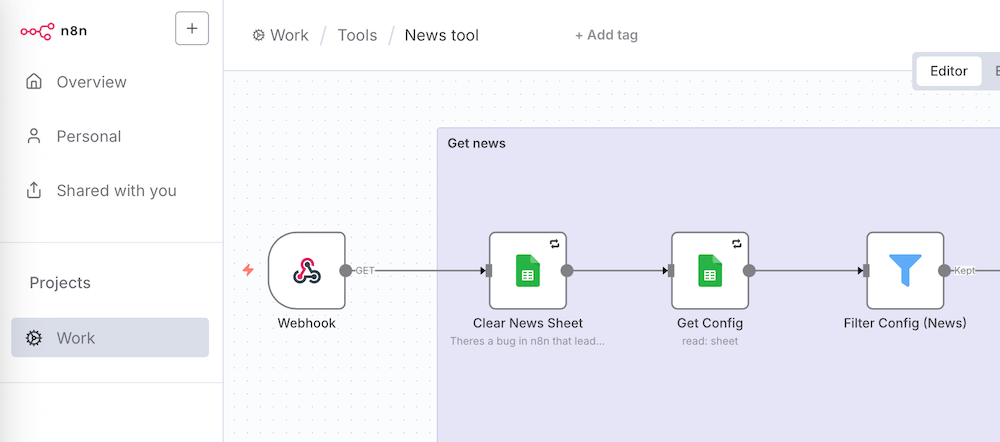
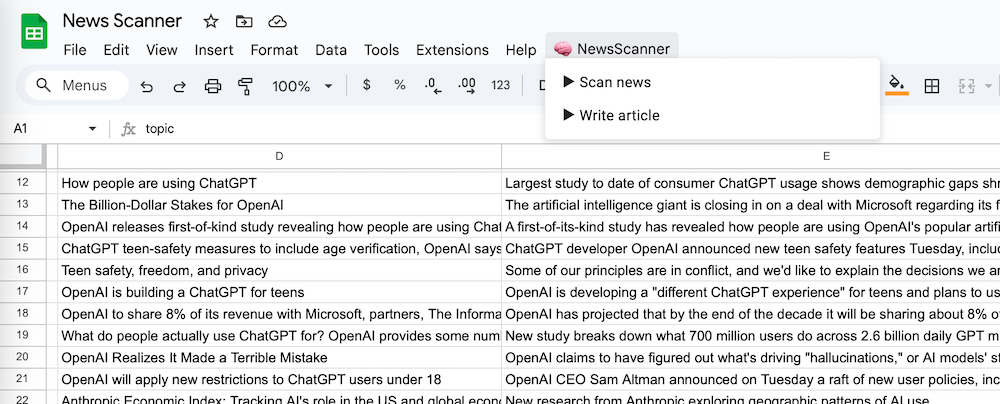
How easy would it be to have a table with the latest news in Google Sheets and use it to directly create an article on the current topics. To do this, you can create a menu in Google Sheets and call up the news with a click or create new articles using generative AI.
This is how it works: Set up menu in Google Sheets & start n8n webhook
Requirements: You need a) an n8n instance in the cloud or b) a self-hosted instance with connected domain (e.g. via a web hoster). An n8n instance on your own computer does not directly work here, as it cannot be reached externally. Workaround: install a tunnel with ngrok.
This works in 5 minutes:
Create a workflow with webhook in n8n
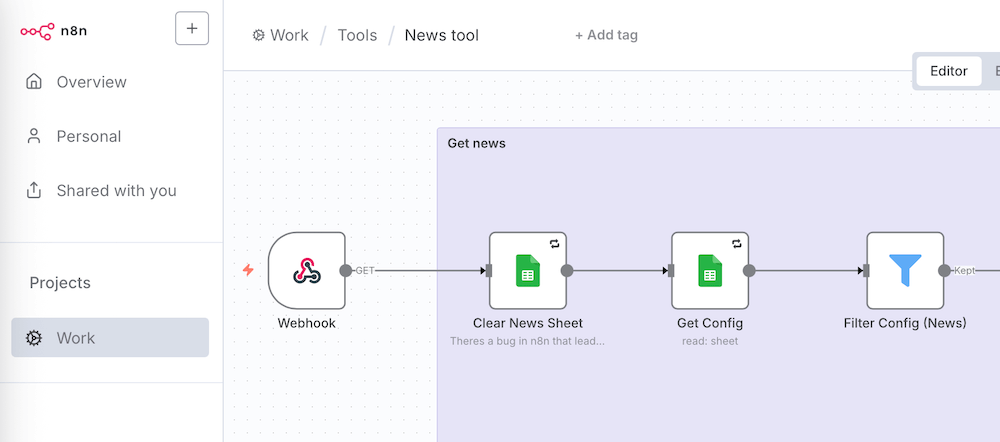
Create a new workflow with a webhook trigger.
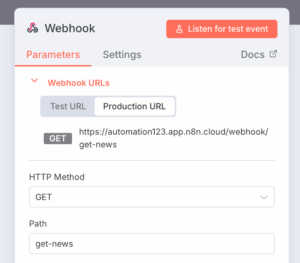
Set up webhook
Define a URL under which the webhook can be accessed. Also make sure that your webhook is protected by authentication to prevent unauthorized use. Copy the URL displayed in the webhook. You will need this in the following apps script code in Google Sheets.
Activate webhook
Then set the workflow to “Active”, otherwise the webhook will not be found.
Google Sheets: Google Apps script for menu entry
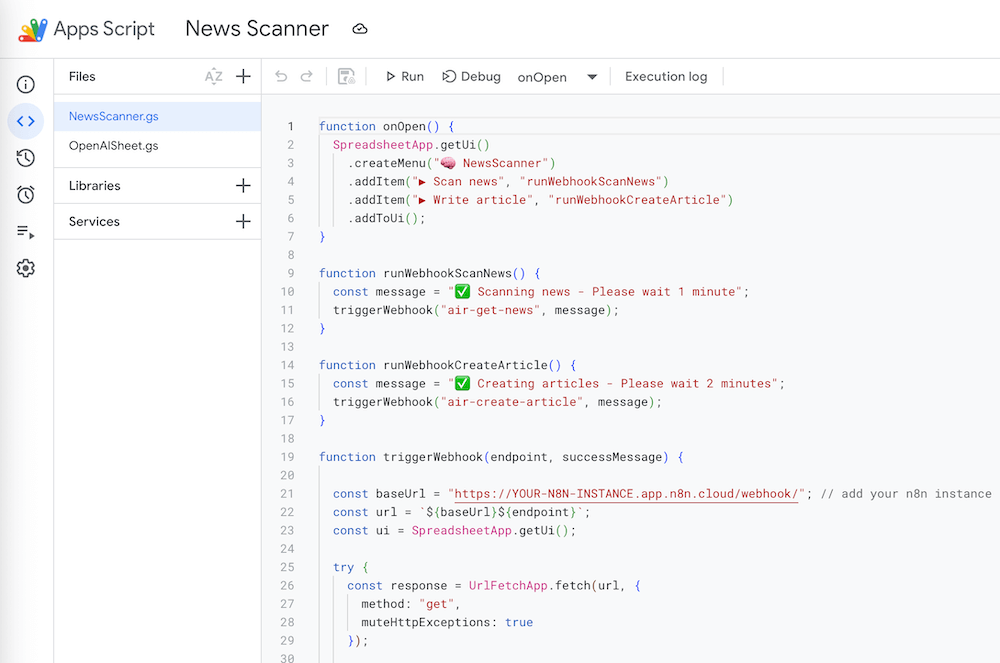
With just a few lines of code, you can add your own menu called “n8n” to the table menu. Create entries such as “Start webhook” in it.
Google Sheets: Google Apps script for webhook call
Open the menu Extensions → Apps Script in Google Sheets. Insert a short Javascript there that calls the webhook URL of n8n via UrlFetchApp.fetch() and thus starts the workflow.
Testing the workflow
Save, return to the sheet, click on the menu – and the command fires your n8n workflow.
Code for Google Sheets menu and webhook call
Copy the code into Google Sheets (Extensions > Apps Script) and customize your instance URL. You need a cloud instance of n8n for this. This works in exactly the same way with Zapier, as you can also create webhooks with your own URLs here.
There are many advantages to this complete automation:
No constant copying of data when retrieving news and creating articles.
Colleagues do not need access to n8n.
You decide yourself when data is passed on instead of rigid workflows or folders
This is a great approach, especially for pragmatic scenarios such as data transfer, reporting or small automations: quick to implement, easy to understand and flexibly expandable.
You can get n8n here using our affiliate partner link (we earn a little commission if you order):
TL;DR: Use a custom Google Sheets menu when editors or operations teams need a simple button that triggers an n8n webhook without opening n8n. It is best for repeatable spreadsheet-driven workflows, not for complex approval logic or heavy error handling.
Editorial recommendation: This setup is worth using when the spreadsheet is already the team workspace. Keep the Google Apps Script small, validate inputs in n8n, and log every webhook call so failed runs can be traced quickly.
When a Google Sheets menu plus n8n webhook is the right architecture
Scenario
Recommendation
Why it matters
Recurring sheet-based tasks
Use it
The trigger lives where the user already works.
One-off automation experiment
Maybe
A manual n8n webhook call may be faster to test.
Sensitive or regulated data
Use carefully
Add authentication, logging, and strict access control.
Complex multi-step approvals
Avoid as the only control
Use n8n states, forms, or a dedicated workflow UI instead.
FAQ
Can Google Sheets trigger an n8n workflow?
Yes. Google Sheets can call an n8n webhook through Google Apps Script, for example from a custom spreadsheet menu.
Is a Google Sheets webhook trigger secure?
It can be secure if the webhook URL is protected, access to the sheet is restricted, and n8n validates the incoming payload.
When should I avoid this setup?
Avoid it when the workflow needs complex user permissions, detailed audit trails, or a dedicated approval interface.
Ralf Schukay is a co-founder of AI Rockstars and specializes in AI automation and enterprise solutions. He tests and compares AI tools for professional use and helps teams become more productive through workflow automation.
To provide the best experiences, we use technologies like cookies to store and/or access device information. Consenting to these technologies will allow us to process data such as browsing behavior or unique IDs on this site. Not consenting or withdrawing consent, may adversely affect certain features and functions.
Functional
Always active
The technical storage or access is strictly necessary for the legitimate purpose of enabling the use of a specific service explicitly requested by the subscriber or user, or for the sole purpose of carrying out the transmission of a communication over an electronic communications network.
Preferences
The technical storage or access is necessary for the legitimate purpose of storing preferences that are not requested by the subscriber or user.
Statistics
The technical storage or access that is used exclusively for statistical purposes.The technical storage or access that is used exclusively for anonymous statistical purposes. Without a subpoena, voluntary compliance on the part of your Internet Service Provider, or additional records from a third party, information stored or retrieved for this purpose alone cannot usually be used to identify you.
Marketing
The technical storage or access is required to create user profiles to send advertising, or to track the user on a website or across several websites for similar marketing purposes.