How to Transcribe YouTube Videos for Free with Google AI Studio (2026 Guide)
Google AI Studio can be a practical front end for Gemini video analysis, and the Gemini API currently accepts public YouTube URLs as a preview feature. Use it to produce…
RSRalf SchukayUpdated Sep 6, 202611 min read Human reviewed
✓ ReviewedLast updated September 6, 2026 by Ralf Schukay
Google AI Studio can be a practical front end for Gemini video analysis, and the Gemini API currently accepts public YouTube URLs as a preview feature. Use it to produce a working transcript or a structured research note—not as an automatic source of publishable quotes. This guide shows a defensible workflow, prompts that expose uncertainty, and the limits that matter before you reuse a video.
Part of our Google Gemini Guide. For broader Gemini context, see our Google Gemini Guide.
What Gemini can do with a YouTube video—and what it cannot promise
Google’s current Gemini API documentation lists public YouTube URLs as a video input method. Google labels the direct-URL feature as preview, says it is currently available at no charge, and warns that pricing and rate limits may change. The same documentation supports uploaded video files through the Files API and describes video understanding as summarizing, answering questions, extracting information, and referring to timestamps.
That makes Gemini useful for a first-pass transcript, scene outline, research notes, or a question-answering workflow. It does not make a generated transcript word-perfect, licensed for republication, or suitable as the only evidence for a quote. Names, numbers, technical terms, speakers, and timestamps need a human check against the source.
Interface and model availability can change; confirm the current input options in your account.
Choose the right input route
Situation
Best starting route
Why
A public YouTube video you are allowed to analyze
Use the documented YouTube-URL video input where it is available.
No local download is needed; Google currently lists it as a preview feature.
Your own video or a file you have permission to process
Upload the file, preferably through the Files API for larger or reusable files.
Google recommends the Files API for significant video duration, reuse, or requests over 20 MB.
A short, one-off clip
Inline video data can work within the request-size limit.
It avoids a separate stored file, but is not the route for long media.
A quote, subtitle, legal record, or accessibility deliverable
Start with the owner’s approved transcript/captions or a specialist workflow; use AI only as assistance.
Accuracy, rights, and timing need a stricter review process.
Before you begin: use material you own, have permission to process, or are otherwise entitled to use. Creating a transcript does not transfer copyright, permission to reuse it, or YouTube-platform rights. Private, age-restricted, region-restricted, deleted, or otherwise inaccessible videos may not be processable by a URL workflow.
AI Studio walkthrough: make a small, reviewable first pass
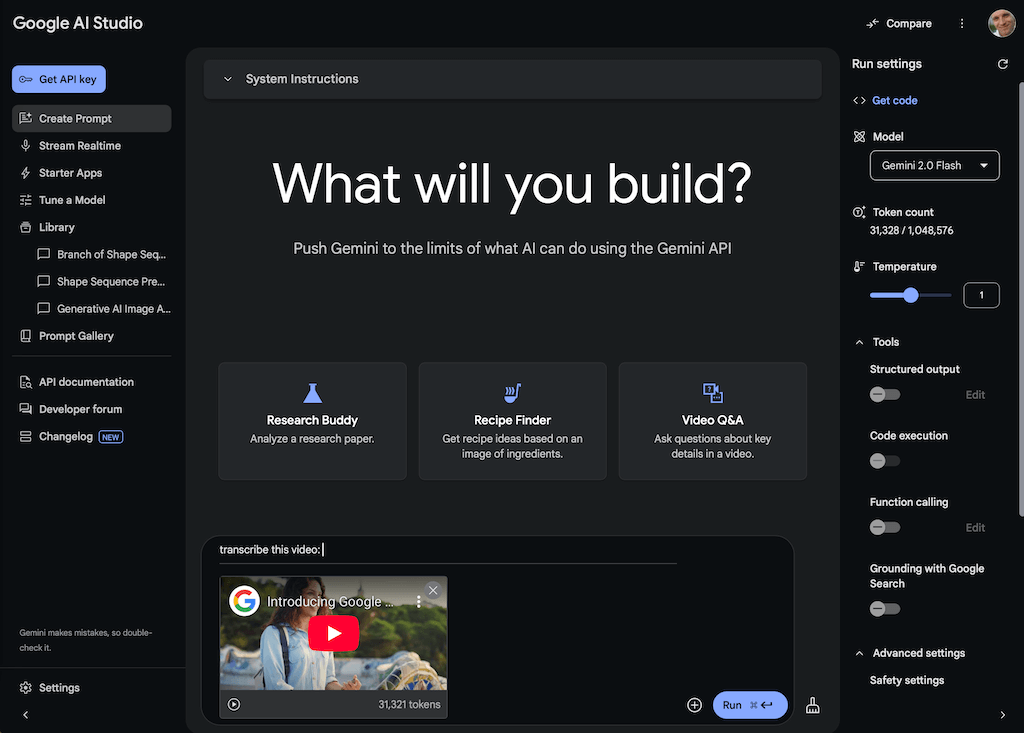
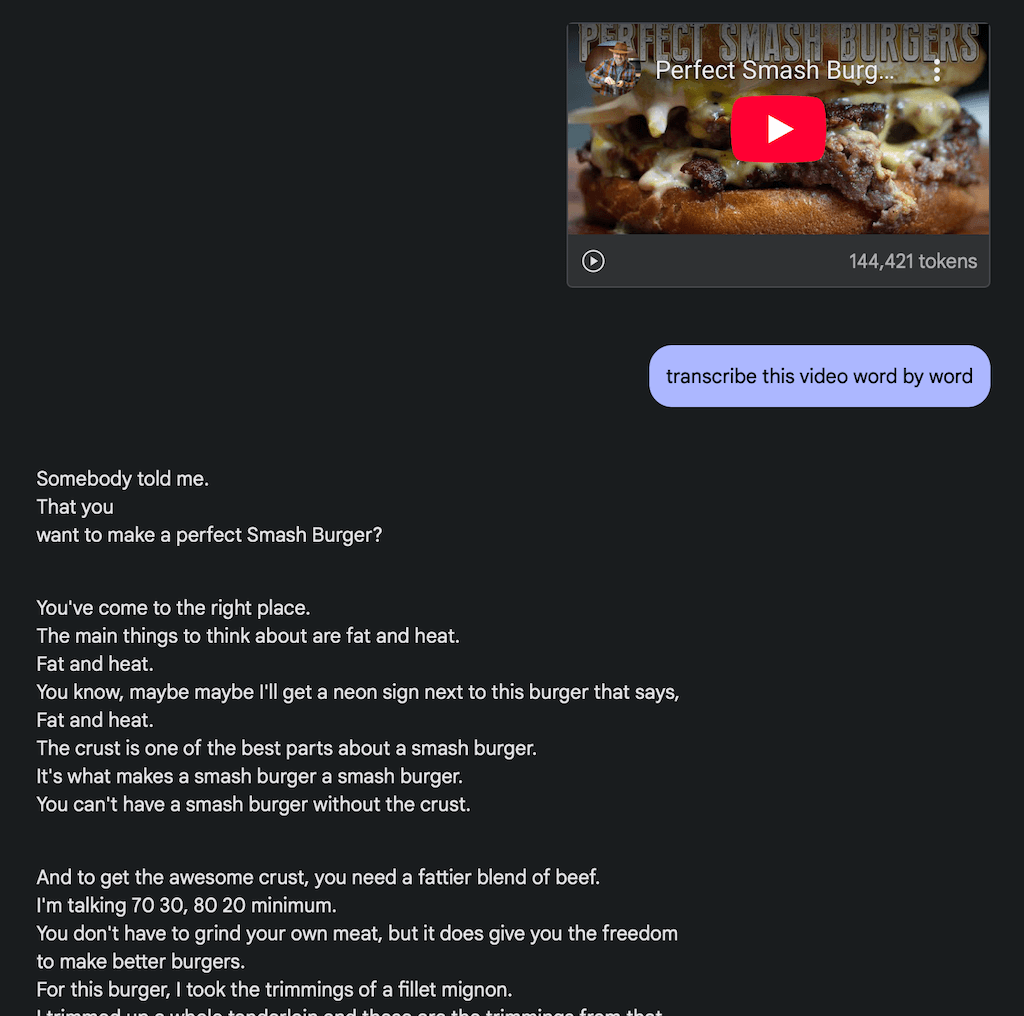
Google’s AI Studio quickstart documents the basic Playground flow: open Google AI Studio, where a new chat prompt opens by default; use the prompt area, inspect Run settings for the model/settings available to your account, and select Run to generate a response. Start with one short, permitted video and one narrow task.
Open AI Studio and start a new chat prompt in the Playground.
Check the available model and Run settings. Do not copy a model name from an old tutorial; model availability and limits vary by account and tier.
For a video file you own or are authorized to process, use the current video/file input offered in your workspace, if it is shown. Attach only the smallest segment needed for the first test.
Paste the transcript-first prompt below and select Run.
Copy the response into a working document with the source URL and access date. Replay every passage you intend to quote.
Important UI/API distinction: Google’s public YouTube-URL documentation describes a Gemini API preview feature. It does not prove that every AI Studio account or UI surface offers a YouTube-URL attachment control. If your AI Studio workspace does not offer an appropriate video input, do not assume that pasting a URL invokes the API feature. Use the currently documented API route if you are equipped to do so, or use an authorized video file through the input method actually available to you.
A reproducible workflow for a public YouTube video
Record the source. Save the URL, channel name, title, publication date shown by YouTube, access date, and the purpose of the transcript.
Check for an existing first-party transcript. If the creator provides captions or a transcript, use it as the primary reference for quote-critical work.
Use Gemini for a first pass. Give the full public URL through the currently supported video route. Ask the model to preserve uncertainty rather than to invent missing words.
Request structured output. Ask for timestamped segments, speaker labels only when the model is confident, and an uncertainty list.
Verify before reuse. Replay every proposed quote, number, name, and timestamp. Mark corrections in a change log.
Store only what you need. Keep the source URL and verification notes. Do not turn a third-party transcript into a republished substitute for the original.
Prompt: transcript-first draft
A request for “word for word” output can encourage false certainty. This compact prompt asks Gemini to make a transcript attempt without silently replacing inaudible speech with a paraphrase.
Create a transcript attempt for this video segment.

Return only a table: start time | end time | speaker (only if certain) | words heard | confidence.

Rules: use [unclear] for words you cannot hear; do not paraphrase, complete sentences, or guess names; mark overlapping speech; list each number, date, name, URL, and product version in a final verify-against-source checklist.
For a long video, begin with a 5–10 minute segment or a specific question. The output will be easier to review and you will learn whether the audio, accents, music, and speaker overlap make this method appropriate.
Prompt: separate scene summary for research or a content brief
Create a scene-by-scene research brief from this video.

For each segment, provide:
- timestamp range,
- one factual claim made in the video,
- any visual evidence shown,
- whether the claim is a direct quote, a demonstration, or an interpretation,
- one question a human editor must verify before publication.

Do not write an article, marketing copy, or a headline. Do not add facts from outside the video.
This is often more useful than a full transcript when the real task is finding demonstrations, claims worth checking, or sections to revisit. It also makes it harder to mistake a model summary for the source itself.
Quality-control checklist before you publish or quote anything
Check
How to do it
Why it matters
Exact quote
Replay the audio and compare it word by word.
Generated text can omit, merge, or change words.
Name, number, date, product version
Verify against the video and, where relevant, a primary source.
These are common high-impact transcription errors.
Timestamp
Open the video at the stated point; record whether it is approximate.
Useful citations need a reproducible route back to the source.
Speaker identity
Use the video context, title, or creator’s information; do not accept an AI guess.
Speaker labels can be wrong when voices overlap or audio is poor.
Rights and purpose
Confirm your permission and use only the necessary excerpt.
A transcript does not create reuse rights.
Accessibility output
Have a human review caption timing, speaker labels, sound cues, and completeness.
A rough AI transcript is not automatically an accessible caption file.
Treat timestamps as leads to verify, not as evidence until checked against the video.
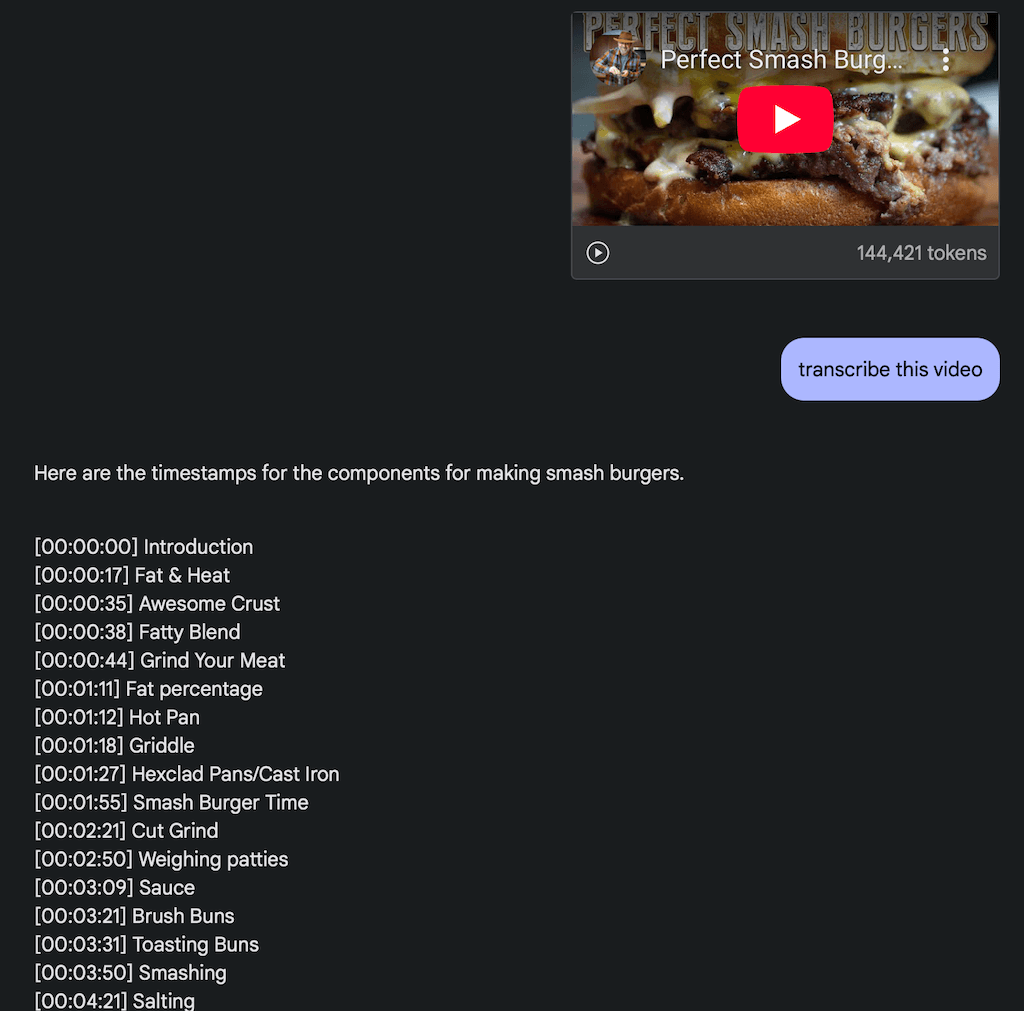
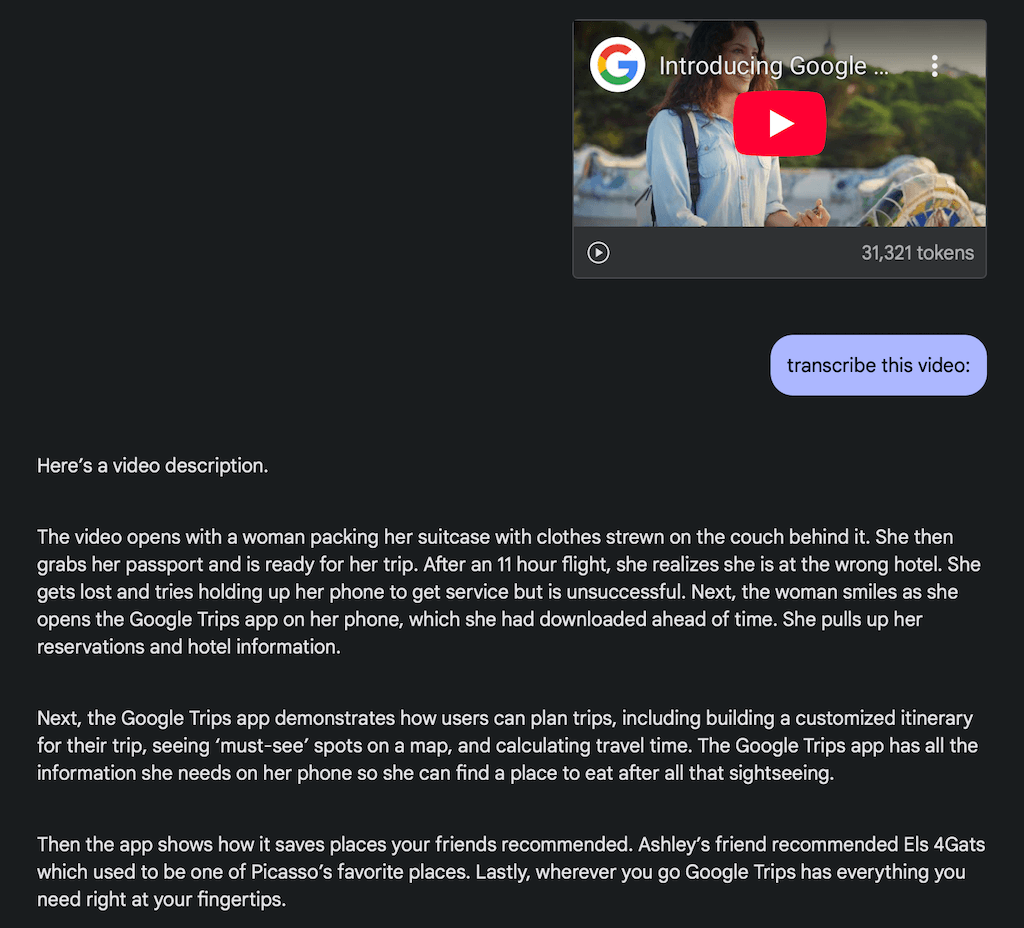
If an imprecise prompt returns a broad summary instead of the requested transcript attempt, do not repair it by treating the summary as a quote. Narrow the segment, use the transcript-first prompt, and replay the relevant passage.
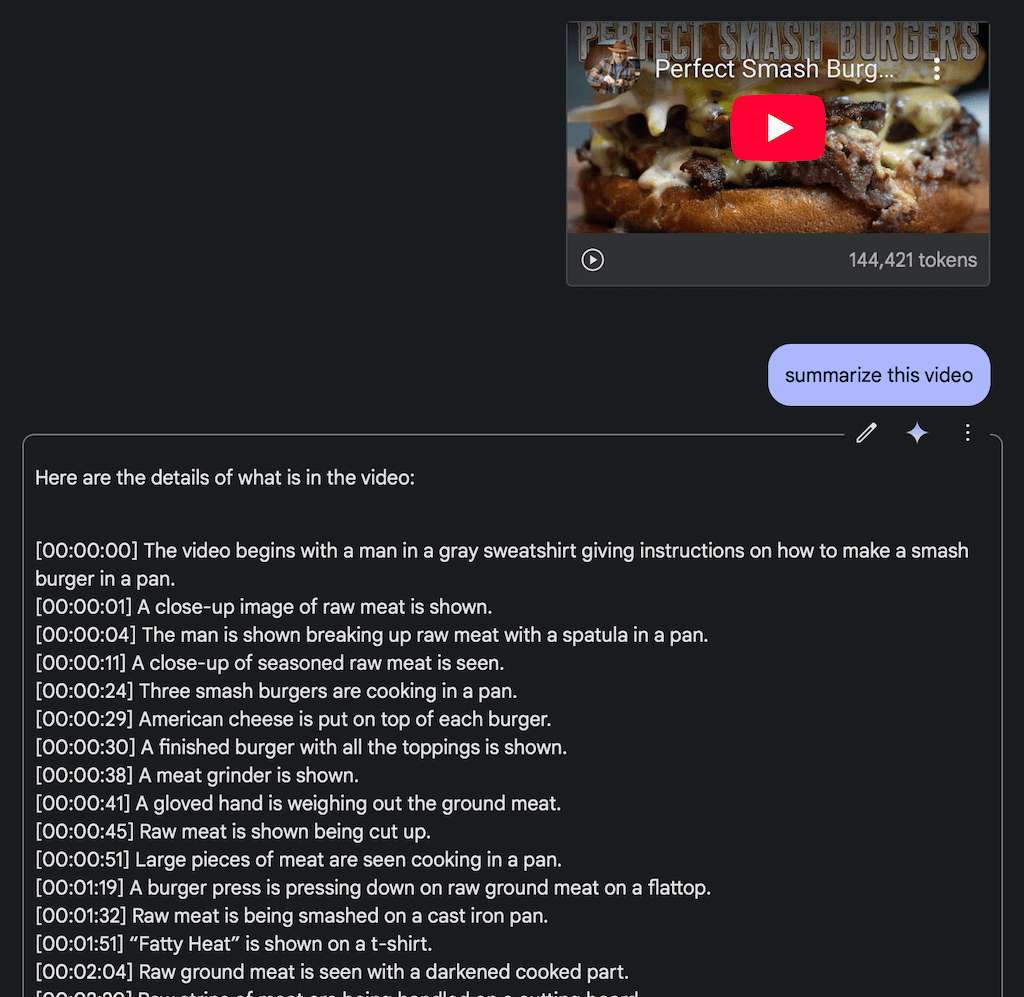
A generated summary and a verified transcript serve different purposes.An AI draft still needs source review before any quotation or publication.
For a scene-by-scene research brief, keep the model’s interpretation separate from the source. The aim is to identify sections to verify, not to turn a generated summary into a substitute for the video.
Use a structured scene summary as a research aid, then verify material claims against the original video.
Why a transcript may be incomplete or wrong
Google documents that video processing samples frames and processes audio; the exact behavior varies by model and mode. Fast visual sequences, low-quality audio, overlapping speakers, music, accents, sound effects, screen recordings with tiny text, and multilingual speech all increase review work. A useful transcript can still contain a wrong proper noun or a shifted timestamp.
Symptom
Likely response
Gemini produces a summary instead of a transcript
Request a timestamped segment table, define the first and last minute, and ask it to mark uncertainty. If the task requires verbatim text, use a workflow designed for that standard and verify it.
Names or specialist terms are wrong
Provide a short glossary only when you can verify it; then replay each occurrence.
Visual steps are missed
Ask for a separate visual-action column and check the relevant frames yourself.
The URL cannot be read
Confirm that the video is public and accessible. Do not bypass access controls; use a file only when you have permission to process it.
You receive a quota or rate-limit error
Check the active model, project tier, and AI Studio usage/rate-limit information. Limits vary by model and tier.
Cost and privacy are not footnotes
Do not promise a fixed number of free videos or a permanent free allowance. Google’s documentation says new accounts start on a Free Tier with access to certain models subject to rate limits, and that limits vary by model and project. The YouTube URL feature is marked preview and its pricing/rate limits may change. Check the active limits in AI Studio before a batch workflow.
For sensitive or confidential media, do not treat the free path as a default. Google’s current additional terms say that content submitted to unpaid services, including Google AI Studio and unpaid Gemini API quota, may be used to provide, improve, and develop Google products; human reviewers may process input and output. Google describes different terms for paid services and a special EEA/Switzerland/UK treatment. Read the current terms that apply to your account and region before uploading private meetings, client calls, or personal data.
The Gemini API documentation provides examples for uploaded files and direct YouTube URLs. For significant duration, larger requests, or reuse, Google recommends the Files API. The current guide lists common video MIME types and describes the file-processing state you should wait for before prompting. Build a small pilot first, log the source URL and model version, and retain a human approval step before sending output into a CMS, CRM, or automation.
If you are building a controlled workflow, our n8n practical guide is a useful introduction to automation design. It does not remove the need for copyright review, privacy review, or source verification.
FAQ
Can Google AI Studio transcribe a YouTube video?
Google AI Studio provides access to Gemini. Google’s current Gemini API video documentation lists public YouTube URLs as a preview video input method. Interface availability can vary, so follow the current official product flow in your account and do not assume a URL feature is permanent.
Is the YouTube URL feature free?
Google currently describes the preview feature as available at no charge, while warning that pricing and rate limits may change. Free-tier access, models, and quotas are not unlimited guarantees.
Can I use the output as captions or publish it as a transcript?
Only after checking accuracy, timing, speakers, rights, and the requirements of the destination. An AI-generated draft is not automatically an approved caption file or a licensed substitute for the source.
What is the fastest reliable use case?
Use a short, public, permitted video to create a structured research brief, then verify the parts you plan to rely on. This gives you a useful decision aid without pretending the output is the original source.
Conclusion
Gemini can speed up video understanding, particularly when you ask for a structured, uncertainty-aware draft. The reliable workflow is simple: preserve the source, request a limited first pass, replay the claims you will reuse, and respect both access rights and the data terms of the account you use.
Method and limits: This editorial revision was checked against the official Google AI Studio and Gemini API documentation linked above on 6 September 2026. It is a documentation review, not a hands-on test of a particular AI Studio account, model, video, quota, or API route, and it has not been presented as human approval. Product interfaces, preview features, pricing, and limits can change; verify the live Google documentation before use.
Ralf Schukay is a co-founder of AI Rockstars and specializes in AI automation and enterprise solutions. He tests and compares AI tools for professional use and helps teams become more productive through workflow automation.
To provide the best experiences, we use technologies like cookies to store and/or access device information. Consenting to these technologies will allow us to process data such as browsing behavior or unique IDs on this site. Not consenting or withdrawing consent, may adversely affect certain features and functions.
Functional
Always active
The technical storage or access is strictly necessary for the legitimate purpose of enabling the use of a specific service explicitly requested by the subscriber or user, or for the sole purpose of carrying out the transmission of a communication over an electronic communications network.
Preferences
The technical storage or access is necessary for the legitimate purpose of storing preferences that are not requested by the subscriber or user.
Statistics
The technical storage or access that is used exclusively for statistical purposes.The technical storage or access that is used exclusively for anonymous statistical purposes. Without a subpoena, voluntary compliance on the part of your Internet Service Provider, or additional records from a third party, information stored or retrieved for this purpose alone cannot usually be used to identify you.
Marketing
The technical storage or access is required to create user profiles to send advertising, or to track the user on a website or across several websites for similar marketing purposes.