Related to multiple guides. For full context, see our AI Agents Guide & Claude AI Guide.
How AI Rockstars evaluates this update
AI Rockstars evaluates Guide: Claude Cowork – The 7 Most Important Features for Automating Your Tasks by checking official product information, availability, pricing or cost impact, workflow relevance, integration depth, and whether the update changes a practical decision for teams. This article should be read as an AI-news explainer: verify current access, terms, and model behavior before using the tool in production.
What should readers do next?
Use this post to understand the update, then compare it with the broader Claude AI guide and the AI Rockstars planning tools. For business use, check whether the tool improves quality, saves time, reduces cost, or adds integration risk before rolling it into a workflow.
Which official sources should readers compare?
TL;DR – Claude Cowork
Claude Cowork is most useful when you treat it as a workflow assistant, not a smarter chat window. Memory, connectors, skills, projects, and scheduled tasks become powerful when they are tied to repeatable work with clear boundaries and review steps.
Our verdict: Claude Cowork is an operating layer for recurring tasks
The strongest Claude Cowork setups combine context, reusable instructions, and connected tools. The weak setups try to automate vague work without defining the desired output, permissions, or failure mode.
| Feature | Best use | Quality risk |
|---|---|---|
| Memory | Reusable preferences, project context, recurring constraints. | Outdated memory can steer work in the wrong direction. |
| Connectors | Bring documents, tools, and work systems into the assistant flow. | Permissions need to match the task, not the user’s full access. |
| Skills | Repeatable workflows such as briefs, reports, audits, and formatting. | Poorly written skills produce consistent but mediocre output. |
| Scheduled tasks | Monitoring, reminders, recurring summaries, and operational check-ins. | Needs clear escalation rules when something looks wrong. |
Editorial recommendation: define one repeatable workflow first, then add memory, connectors, and skills around that workflow. Do not connect every tool before you know what Claude should actually do.
Claude Cowork Explained Simply
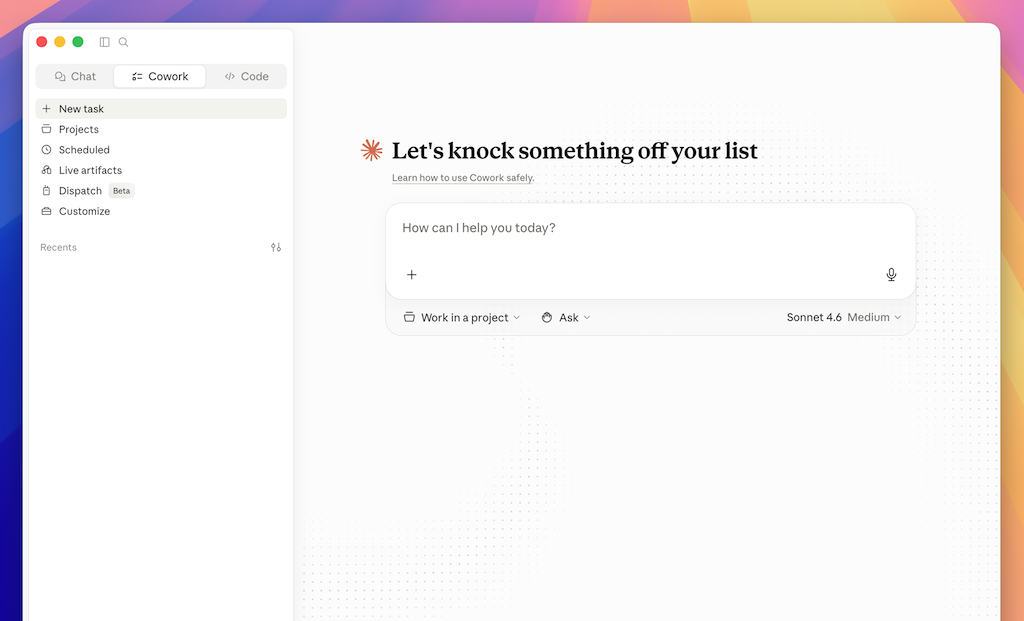
Anyone who works with Claude Chat or other AI chats on a daily basis knows the frustration: uploading files, hitting limits, copying out answers—and then having to do the work yourself anyway. Claude Cowork solves exactly that. Because Cowork handles tasks independently while Claude Chat only provides you with answers in the chat. Claude Cowork has 3 fundamental advantages:- File Access: Chat has a limit of 20 files and 30 MB per conversation. Cowork accesses local files directly on your PC —there is no limit.
- Output: Chat only provides text in the chat window. Cowork creates finished files directly in your folder—Excel, Word, HTML, everything.
- Prompting: In Claude Chat, you type: “Recommend a folder structure for me.” In Cowork, however, you type: “Organize my 100 files into this structure.” Chat only gives tips; Cowork does the work for you!
The 7 Cowork features you need to know
1. Create and edit local files
Cowork can read, create, edit, and organize files on your computer —directly, without the need to upload them first. Example: Scanning photos of receipts- Use Case: Save over 100 scanned receipts as image files in a folder on your PC. You want Claude to scan them and create a list for you.
- Then prompt Cowork: “Create an expense report as an Excel file, including date, merchant, category, and amount—mark unclear entries with ‘CHECK'”
- Result: Cowork reads each image, extracts the data, and creates the finished file.
2. Memory (the most important feature)
Chat has an online memory (“Memory”) with a hard limit. Cowork saves memories of previous chats in actual files on your computer—aCLAUDE.md for rules and a memory.md for ongoing insights. No limit, no loss.
Here’s how it works:
- Simply tell Cowork “Remember my writing style” or “Remember how you solved this task” or similar phrases.
- From now on, Cowork will write in your style and always solve tasks the same way. You can find the files where Claude stores this information on the right side of the chat and in your Claude directory on your PC. Great for recurring tasks.
3. Connectors: Integrate Cowork into your tools
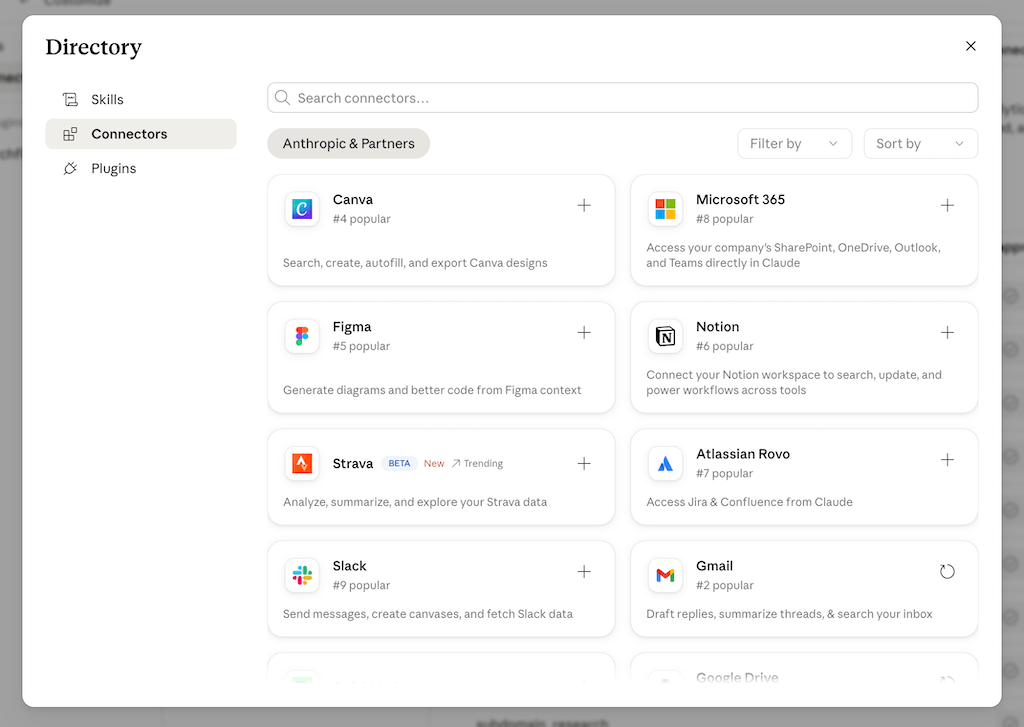
By default, Cowork only sees your shared folder on your computer. With Connectors, you can connect Gmail, Google Drive, Notion, Calendar, and more. The real power comes from using multiple Connectors together. Example: Combinemeeting transcripts from Google Drive with meeting notes, e.g., from Notion- Setup: Set up both connectors
- Assign the task to Cowork: “Synchronize my meeting notes”
- Result: → Cowork compares both and consolidates the notes into a single, unified summary.
 Technical Options
You have several options for connecting other tools to Claude Cowork. By default, Cowork can’t simply execute everything via chat, as this would compromise security. But with some technical skills, you can expand Cowork into your personal assistant for anything you need to get done.
Technical Options
You have several options for connecting other tools to Claude Cowork. By default, Cowork can’t simply execute everything via chat, as this would compromise security. But with some technical skills, you can expand Cowork into your personal assistant for anything you need to get done.
- Connect n8n workflow: The automation solution n8n can execute and combine all other tools. Connect Cowork to n8n, and all doors are open for you to execute any workflow via chat!
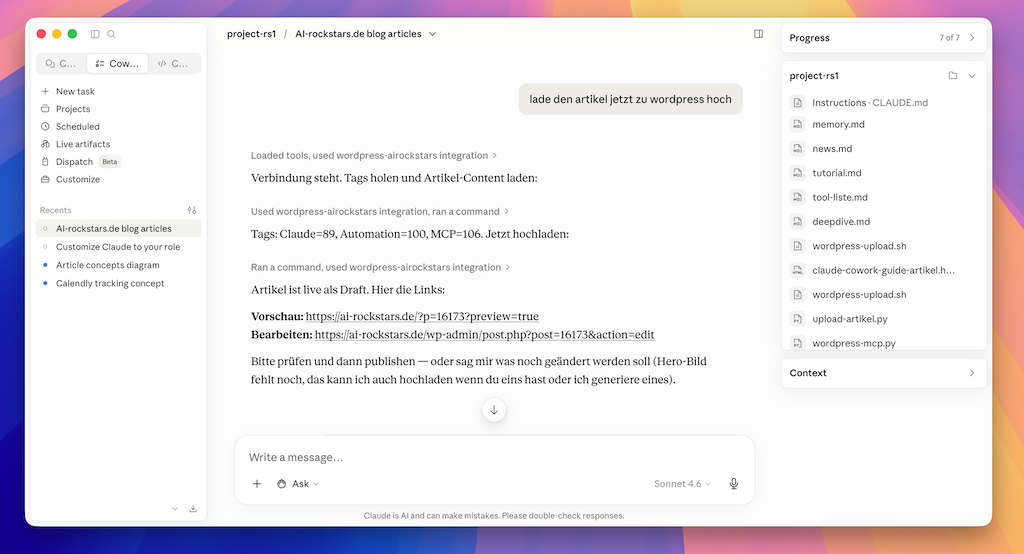
- Connect an MCP server: MCP is the standard for connecting tools to AI assistants. This is a bit technical, though. Simply create your own MCP server in Claude Cowork, e.g., to create articles directly in WordPress. Learn more about MCP servers here
4. Skills: Automate and Reuse Workflows
Skills are the turbo boost. Instead of prompting every complex workflow from scratch, work through it once—until the result is right—and then say: “Create a skill from this that repeats this for me.” From now on, this workflow is available at the push of a button. Three important rules:- Enable Anthropic’s Skill Creator (under Customize → Skills)
- Save your skills—they won’t be transferred if you switch computers
- Run through the entire workflow first, then create the skill—never start from scratch
5. Cowork Projects
Similar to Chat Projects—but with a key advantage: Cowork Projects write directly to their own knowledge files. In Chat, you have to download, upload, and delete files. In Cowork, you simply say “Code this principle”—done.6. Claude Browser Extension
Once the Claude extension is installed in the Chrome browser, Cowork can pass tasks to it.- Note: Currently still slow and unreliable. It often stops mid-task and burns through credits by overthinking.
- Better: For browser tasks , usethe direct API or other tools until this becomes more stable.
7. Scheduled Tasks: Automatic Workflows
Scheduled Tasks execute tasks on a regular basis, e.g., daily or every Monday. This makes it easier to automate your work routines, and Claude really feels useful. Example: Prioritize Inbox- Scheduled Task: Every morning, Cowork automatically reads all emails (Connector) and compares them with saved Inbox Zero rules (local file)
- Benefit: Claude also uses previously saved feedback corrections (from memory) to ensure you always get consistent responses and results
- Result: reliable automation that gets better every day.
Claude Cowork Setup: What You Need to Configure First
Before you start using Claude Cowork productively, you should be familiar with these three important settings:- Subscribe to Claude Pro
- Claude Cowork and Claude Code are only available in the paid version of Claude (Claude Pro: approx. €20/month)
- Install Claude Desktop
- Download Claude Desktop. Claude Cowork runs on your PC, not in the cloud.
- Cowork Settings:
- Enter your own instructions in the Cowork settings so that Claude has its basic briefing (e.g., “Always ask before changing files”). These are guidelines—they’re especially important at the beginning so that Claude doesn’t accidentally change anything you don’t want.
- Enable Capabilities:
- Memory: Enable memory features,
- setTool access to “Load when needed,” and enable everything else as well.
- Create a “Cowork Playground” folder –
- Create a folder where Claude Cowork will work and select it (below the chat).
- Place all files here that Cowork should use. Claude Cowork cannot edit or modify other files (for security reasons).