n8n learning path: This tutorial is part of our complete n8n guide to workflow automation, templates, AI agents and production safeguards. Part of our AI Agents Guide. For the full…
FSFlorian SchröderUpdated Jul 15, 202614 min read Human reviewed
Part of our AI Agents Guide. For the full picture, see our complete AI Agents Guide.
BLUF: Reliable n8n troubleshooting starts with the failed execution, not with random node changes. Identify the first failing node, inspect its input and output, verify credentials and endpoint configuration, then reproduce the failure with controlled data.
Use this guide for runtime failures. If a downloaded workflow fails immediately after import, use our n8n template troubleshooting guide instead.
This guide covers authentication failures, webhook configuration, unexpected item structures, rate limits, memory pressure, and operational monitoring. Recommendations are checked against the current n8n documentation and avoid universal percentages or provider-specific credential assumptions.
n8n workflows often fail due to recurring problems that you can quickly identify and fix with the right techniques. Most errors are caused by authentication conflicts, incorrect data formats or resource bottlenecks – but with a systematic approach, you can solve them in just a few minutes.
Why n8n errors occur
The complexity of modern automation brings with it various sources of error. External APIs change their authentication requirements without warning, while different services expect different data structures.
Self-hosted instances often suffer from:
Insufficient memory for large amounts of data
Lack of HTTPS certificates for webhook connections
Outdated node versions without current API compatibility
Overloaded database connections with high throughput
Systematic approach to troubleshooting
Failed executions are your primary diagnostic record. Inspect the first node with unexpected input or output. On self-hosted instances, use N8N_LOG_LEVEL=debug only when additional server-side detail is needed and handle logs as potentially sensitive data.
Isolate problems by deactivating workflow parts step by step:
Test individual nodes with static test data
Check credentials with simple API calls
Validate data formats between workflow steps
The 7 critical problem areas
The recurring failure categories are authentication, unreachable webhooks, unexpected item structures, rate limits, resource pressure, database connectivity, and queue processing. Treat this as a diagnostic checklist rather than a claim about how frequently each problem occurs.
With targeted debug strategies and the right environment settings, you can systematically fix these problems before they affect your productivity.
Solve authentication and credential problems
Authentication errors are one of the most common stumbling blocks in n8n workflows. These problems are usually caused by expired tokens, changed API authorizations or incorrect service configurations.
OAuth2 token suddenly invalid
“Request failed with status code 401” often appears in workflows that were running perfectly yesterday. This is usually due to automatic token processes or service updates.
For Google Workspace integrations, confirm that the selected authentication method, OAuth scopes, redirect URL, and Workspace policies match the node configuration. Domain-wide delegation is only required for specific service-account scenarios and should not be enabled by default.
For Slack integrations, compare the node operation with the scopes assigned to the Slack app. If scopes change, reinstall or reauthorize the app before testing the credential again.
Manage API keys correctly
Credential lifetimes depend on the provider and credential type. Track expiry and rotation policies in the source system rather than assuming a universal lifetime:
Google Cloud: distinguish API keys, OAuth access tokens, refresh tokens, and service-account credentials because their lifecycle rules differ
Microsoft Graph: check the configured expiry date for the app registration secret or certificate
Salesforce: verify connected-app policy, token status, and certificate expiry where certificates are used
For every 401 error message, first check the scope settings of your API credentials. Many services are expanding their authorization models and require additional scopes for existing functions.
Fast diagnostics with test workflows
💡 Tip: Create a separate mini-workflow just for testing your credentials:
Manual Trigger → HTTP Request → Edit Fields
This approach isolates authentication problems from more complex workflow logic. Use simple API calls like GET /user or GET /me to check if your basic authentication works.
Service account configurations with Google services often require JSON key downloads and precise role assignments. Always test new credentials in an isolated environment before integrating them into productive workflows.
Webhook configuration and accessibility
Webhook errors are one of the most frustrating n8n issues because they often occur in production. Public HTTPS accessibility is the basic prerequisite for functioning webhooks.
HTTPS requirements and reverse proxy
Most services only accept HTTPS webhook URLs. Even hosted n8n instances therefore require a reverse proxy with a valid SSL certificate.
These settings are crucial for Nginx configurations:
proxy_http_version 1.1 for WebSocket support
proxy_set_header Upgrade $http_upgrade for connection upgrades
proxy_set_header Connection 'upgrade' for persistent connections
Docker users must ensure that container ports (5678 by default) are correctly mapped to the public domain.
Firewall and network policies
Incoming connections to webhook ports must be explicitly enabled. Many installations fail because only outgoing connections have been configured.
Cloud provider-specific configuration:
AWS: Open security groups for port 443 (HTTPS)
Google Cloud: Set up firewall rules for TCP traffic
Azure: Adjust network security groups accordingly
Set the environment variable correctly
The WEBHOOK_URL environment variable must point to the publicly accessible domain, not to localhost or internal IP addresses. A typical error: WEBHOOK_URL=https://localhost:5678 only works locally.
Correct examples:
WEBHOOK_URL=https://n8n.deine-domain.de
WEBHOOK_URL=https://automation.firma.com
💡 Tip: Test the webhook accessibility with a simple curl command from an external server. If the webhook cannot be reached from outside, external services cannot send any data either.
The most common cause of webhook problems is a discrepancy between internal and external URL configuration. Therefore, systematically check both proxy settings and environment variables.
Data format errors and code node problems
Most n8n workflows do not fail due to complex logic, but due to incorrect data formats. Code nodes and HTTP requests in particular are prone to structural errors that can surprise even experienced developers.
Format JSON structures correctly
n8n expects a specific array format from all nodes: [{ json: {...} }] instead of the intuitive { json: {...}}. This requirement regularly leads to error messages such as “Code doesn’t return items properly”.
Use the Code node when a transformation is too complex for expressions or the Edit Fields node. Return valid n8n items and preserve item linking when downstream nodes depend on paired data.
Mastering expression syntax in HTTP requests
In the HTTP Request node, expression syntax depends on whether a field is in fixed or expression mode. Build the body as valid JSON and use the expression editor to insert values instead of adding extra braces by hand.
Incorrect: { "key": "{{ $node.value }}" }
Correct: { { "key": "{{ $node.value }}" } }}
This syntax prevents parsing errors and ensures that variables are correctly embedded in JSON structures.
Avoid memory problems in code nodes
Large data sets should be split into smaller chunks before they are processed. Use return instead of console.log for outputs – the latter can cause memory leaks if used frequently.
Implement timeout mechanisms for loops:
const maxIterations = 10000;
let counter = 0;
while (condition && counter < maxIterations) {
  // your logic
  counter ;
}
💡 Tip: Always test code nodes with a small data set before releasing them on production data.
Data format errors can be avoided if you take n8n’s specific requirements into account from the outset. The array format may seem unfamiliar, but it ensures consistent data streams between all workflow components.
API rate limiting and performance optimization
If your n8n workflows are struggling with HTTP 429 errors or timeouts, this is usually due to overloaded APIs or unoptimized data processing. The good news: with the right settings, you can turn lame workflows into high-performance automation machines.
Configure batch processing correctly
The HTTP request node offers you powerful batch functions that many overlook. Set “Items per Batch” to 10 to 50 entries and adjust the “Batch Interval” to the API limits.
Specific settings for popular APIs:
Google APIs: 100 requests per 100 seconds → 10 items, 1000ms interval
Slack: 1 request per second → 1 item, 1000ms interval
Additionally activate “Retry on Fail” with exponential backoff: 3 attempts with 300ms, 900ms, 2700ms delay. This allows you to elegantly intercept temporary API overloads.
Eliminate workflow timeouts
Long workflows often fail due to the standard timeout. Increase EXECUTIONS_PROCESS_TIMEOUT in your environment variable to 3600 seconds for complex processes.
Even more effective: divide resource-intensive operations into sub-workflows. A main workflow starts several specialized workflows in parallel – this reduces memory consumption and improves error handling.
The Split in Batches Node automatically parallelizes data processing. Instead of processing 1000 data records at once, process 10 batches of 100 entries in parallel.
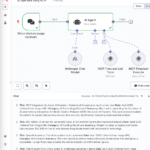
This mini-workflow monitors your API calls in real time and warns you before you reach rate limits.
The combination of intelligent batching and proactive monitoring turns error-prone workflows into reliable automations. Start with the batch settings – the effect is immediate.
Infrastructure and resource management
A poorly configured n8n system leads to workflow failures and performance problems, which often only occur under load. The correct dimensioning of memory, database and queue systems prevents critical errors in productive environments.
Diagnosing memory errors
The infamous “JavaScript heap out of memory” error occurs when n8n requires more memory than has been allocated. Code nodes with large arrays or complex HTTP request chains in particular quickly consume several gigabytes of RAM.
Immediate measures for memory problems:
SetNODE_OPTIONS=--max-old-space-size=4096 in the environment variables (4 GB instead of the default 1 GB)
Start Docker container with at least 2 GB memory limit: docker run --memory=2g
Split data volumes into batches with the “Split in Batches” node
Optimize database performance
PostgreSQL or MySQL connection problems are manifested by “Database is not ready!” or hanging workflows. Connection pools must be adapted to your workflow volume.
Increase pool size for more than 10 concurrent workflows: DB_POSTGRESDB_POOL_SIZE=20
Monitor connection leaks with regular SHOW PROCESSLIST queries
Queue system for scaling
Redis as a queue backend significantly reduces the database load and enables horizontal scaling. Without a queue system, workflows can block each other under high load.
Start multiple workers: N8N_RUNNERS_ENABLED=true and N8N_RUNNERS_COUNT=3
Queue monitoring: redis-cli LLEN bull:n8n:queue shows waiting jobs
Rule for production setups: One worker per CPU core plus a Redis cache with at least 512 MB RAM. This configuration also handles peak loads without workflow timeouts or memory overflows.
Monitoring and proactive error prevention
Effective monitoring transforms n8n from a reactive tool to a proactive automation system that detects problems before they become critical.
Logging strategies for comprehensive analysis
Detailed logging is the foundation of successful n8n maintenance. The setting N8N_LOG_LEVEL=debug in the environment variables enables granular execution details that are essential for error diagnosis.
Modern deployment strategies integrate log streaming to centralized platforms such as the ELK stack or Splunk. These systems enable structured queries and automated alerting mechanisms that send immediate notifications in the event of critical errors.
Environment management as a security strategy
Professional n8n deployments strictly separate configuration from code. Credentials belong exclusively in .env files and never hardcoded in workflow definitions.
A dedicated staging environment enables risk-free testing of new workflows before production deployment. Version control for workflow configurations makes it possible to revert to working versions within minutes in the event of problems.
Automated health monitoring
💡 Create a health check workflow:
Configurecron node for 15-minute intervals
HTTP request nodes for critical API endpoint tests
Slack notification for error rates above 5 percent
Dashboard integration for real-time monitoring
Proactive maintenance strategies
Successful n8n administrations implement continuous health checks of critical integrations. Monitoring workflows automatically monitor API availability, credential validity and resource consumption.
This approach reduces avoidable downtime by making failures observable and repeatable to diagnose.
Practical example: What to do in the event of complete workflow failures?
If your n8n workflows suddenly fail completely, systematic troubleshooting is crucial. Instead of panicking and changing all the settings, a structured approach leads to success more quickly.
Immediate measures for diagnosis
Always start with the execution logs – they show you exactly where the workflow stops. Click on the faulty execution and scroll to the last successful node.
First checkpoints:
Document the error message in the execution log
Note the timestamp of the last functioning run
List changes made to workflows or credentials in the last 24 hours
Perform resource check
Monitor system metrics:
Sustained CPU saturation or throttling indicates a capacity or workload problem
Check RAM consumption for Docker containers(docker stats)
Low disk space can block writes, executions, and database maintenance
💡 Tip: Use htop or docker logs --tail 100 n8n for quick diagnostic information.
Isolation and step-by-step tests
Workflow segmentation is the key to isolating errors. Create a new, minimal test workflow with only the problematic node.
Test procedure:
Single node test: Execute only the faulty node with dummy data
API validation: Test external services with simple HTTP requests
Credential check: Separate authentication with test endpoints
Recovery and rollback
You should never experiment with critical failures. First restore a functioning state before investigating the cause.
Rollback sequence:
Restore workflow backup from Git or n8n export
Completely reconfigure credentials (not just edit them)
Rebuild workflow complexity step by step
Alert on a baseline that reflects the workflow’s business criticality, expected frequency, and normal failure rate. Back up configuration before major changes and test the restore path.
Conclusion
With these seven troubleshooting strategies, you can turn frustrating n8n errors into manageable maintenance tasks. Most workflow failures are caused by recurring patterns that you can quickly identify and resolve with systematic troubleshooting.
Your key takeaways for immediate success:
Inspect failed executions node by node and pin representative test data when reproducing a failure
Configure batch processing – prevents rate limiting and memory overflows
Document environment variables – makes rollbacks much faster in the event of failures
Implement health check workflows – proactive monitoring prevents critical failures
Use a staging environment – risk-free testing instead of experimenting in production
Start today with these immediate measures:
Enable saved execution data according to your privacy requirements and configure an error workflow for production failures.
Create a small health-check workflow with a Schedule Trigger and a notification path for dependencies that justify active monitoring.
Successful automation is not a game of chance, but the result of a systematic approach. With the right troubleshooting strategies, n8n becomes the reliable automation partner you need for your productivity.
AI Rockstars verdict
TL;DR: Most n8n errors come from credentials, malformed data, wrong node settings, rate limits, webhook configuration, execution timing, or missing error handling. A structured debug process is faster than changing nodes randomly.
Editorial recommendation: Debug n8n from the failing node outward: inspect input, output, credentials, API response, and workflow assumptions. Add logging and error paths before the workflow becomes business-critical.
Fast n8n error diagnosis guide
Factor
Priority
Why it matters
Authentication failure
Critical
Check credentials, scopes, expired tokens, and API permissions.
Unexpected data shape
High
Inspect JSON fields before mapping them into later nodes.
Webhook not firing
High
Check active status, URL, method, and external app configuration.
Rate limits or timeouts
High
Add retries, batching, and backoff behavior.
FAQ
What is the most common n8n error?
Common errors include invalid credentials, missing fields, webhook misconfiguration, API limits, and unexpected JSON structures.
How do you debug an n8n workflow?
Start at the failing node, inspect inputs and outputs, test credentials, and run the workflow with controlled sample data.
How can n8n workflows be made more reliable?
Use error branches, retries, logging, alerts, validation, and clear workflow ownership.
Florian Schröder is a co-founder of AI Rockstars and an expert in AI strategies for marketing. He advises companies on integrating AI tools such as ChatGPT, Claude, and Gemini into their workflows. With over 10 years of experience in digital marketing, he combines technical expertise with practical applications.
To provide the best experiences, we use technologies like cookies to store and/or access device information. Consenting to these technologies will allow us to process data such as browsing behavior or unique IDs on this site. Not consenting or withdrawing consent, may adversely affect certain features and functions.
Functional
Always active
The technical storage or access is strictly necessary for the legitimate purpose of enabling the use of a specific service explicitly requested by the subscriber or user, or for the sole purpose of carrying out the transmission of a communication over an electronic communications network.
Preferences
The technical storage or access is necessary for the legitimate purpose of storing preferences that are not requested by the subscriber or user.
Statistics
The technical storage or access that is used exclusively for statistical purposes.The technical storage or access that is used exclusively for anonymous statistical purposes. Without a subpoena, voluntary compliance on the part of your Internet Service Provider, or additional records from a third party, information stored or retrieved for this purpose alone cannot usually be used to identify you.
Marketing
The technical storage or access is required to create user profiles to send advertising, or to track the user on a website or across several websites for similar marketing purposes.