Need a copy of your Fitbit or Google Health records before you change accounts, clean up an old account, or inspect your own history? Start with the export route that matches how you sign in. This guide explains the current paths, how to check an archive locally, and how to use a small, de-identified sample for analysis without treating it as medical advice.
Part of our Google Gemini Guide. For broader context on Gemini tools, see our Google Gemini Guide.
Choose the export route first
The right route depends on the account behind your Fitbit data. Google’s current help documents a Google-Account path and records the former original-Fitbit-login path; the latter is discontinued, not a route to count on now. Do not assume that a device name, a phone app, or a Health Connect connection determines the export path.
| If this describes you | Start here | What to expect |
|---|---|---|
| You sign in to the Google Health/Fitbit app with a Google Account | Google Takeout; select Google Health if it is offered for your account. | A downloadable archive. Google notes that an archive may not include changes made after you request it. |
| You are looking for the former original-Fitbit-login route | Do not rely on it as a recovery path. Read Google’s current account-move and export help. | Google documents the historic Data Export path, but original Fitbit-account access ended after 19 May 2026 and deletion processing began after 15 July 2026. |
| You need GPS data from one workout | Open that activity in the Google Health app → More → Export. | A TCX file for that activity, rather than a whole-account archive. |
Legacy-account warning: Google says original Fitbit-account access ended after 19 May 2026 and that deletion processing for accounts not moved to Google began on 15 July 2026. Data from a deleted account cannot be exported. Treat old sign-in screenshots and third-party recovery advice as outdated; use the live Google help to establish your options.
Official Google Health Help: export Google Health and Fitbit data · Official account-move information
Export with a Google Account
- Sign in to the Google Account that you use for Google Health/Fitbit.
- Open Google Takeout.
- Select only the relevant product. If Google Health is not listed for that account, do not substitute another account; first confirm which account is used in the app.
- Choose a one-time archive and a delivery method. Download directly to a device you control if the archive contains sensitive records.
- Keep the download until you have checked that it opens and contains the period you expected.
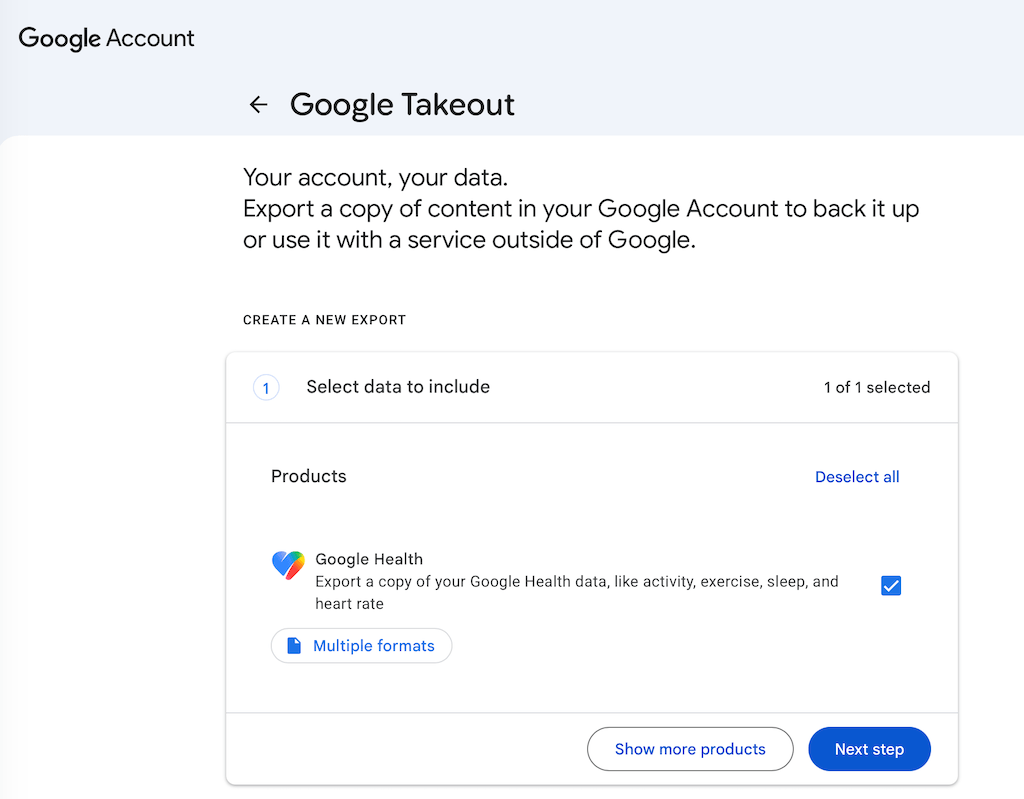
Google Takeout can deliver an archive by email link or to a connected storage provider. Google’s general Takeout guidance also notes that exports are snapshots: changes made while an archive is being prepared may not appear in it. Treat the archive as a copy, not as a deletion or backup policy.
Why older Fitbit-export instructions may not work now
Google’s help still records the former original-Fitbit-login Data Export steps, including complete and selected-data exports. That is useful context when comparing an old archive with your records, but it is not a reliable recovery path in September 2026: Google says original Fitbit-account access ended after 19 May 2026 and deletion processing began after 15 July 2026.
If you cannot sign in, if no export option appears, or if the account was deleted, do not keep trying to route around the change or send credentials to a third party. Use the current Google help and the account-move guidance to establish what is still available for your account.
Inspect the archive safely before using AI
An export can contain far more than the one metric you intend to examine: profile fields, timestamps, location traces, device information, and account history may all be sensitive. Start on your computer with a copy of the archive.
- Make a working copy. Keep the original ZIP untouched. Extract a copy into a folder with an obvious date.
- Read the archive index or documentation first. Google Takeout includes information about file formats; do not infer a universal folder name or column layout from another person’s export.
- List files before opening them. Identify the smallest relevant file or a short date range. For one workout, prefer its TCX export over a full account archive.
- Remove direct identifiers. Before any cloud upload, remove names, email addresses, profile fields, precise locations, and unnecessary timestamps. Keep an offline mapping only if you need one.
- Use a small sample first. A few rows or a weekly aggregate is enough to test whether a tool understands the columns.
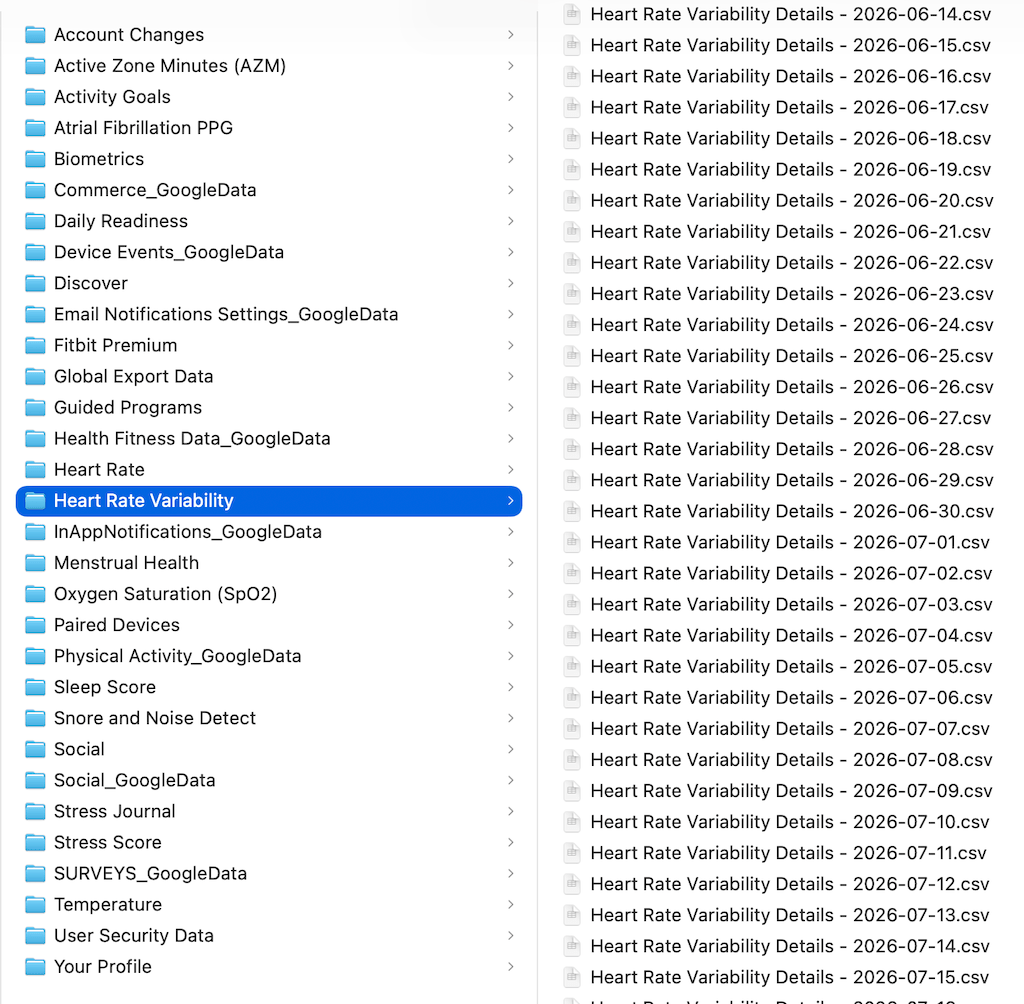
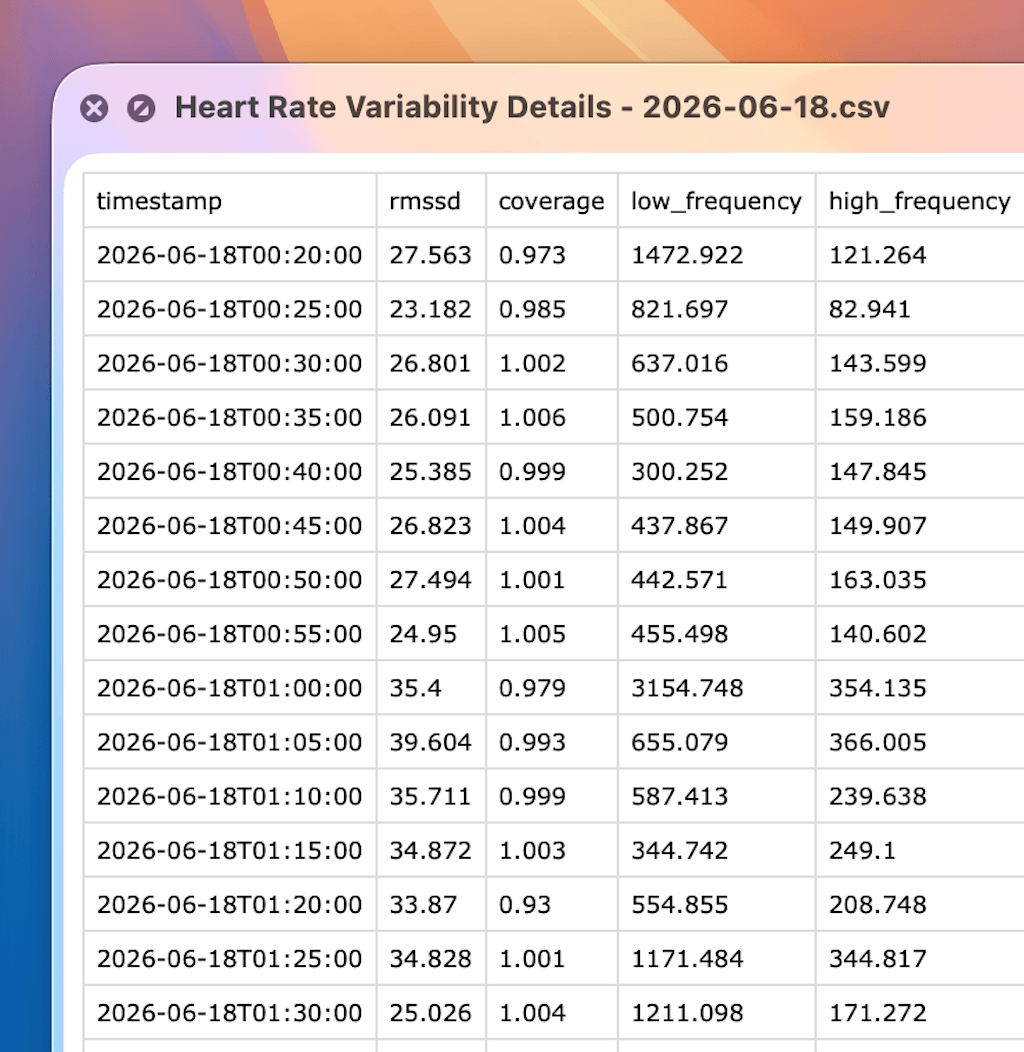
When you do need to inspect a measurement file, start with its header, units, timestamps, and missing values. A raw file can be useful for checking structure without implying that a particular metric supports a health conclusion.
A useful analysis plan: ask descriptive questions first
AI can help with formatting, summaries, charts, and data-quality checks. It cannot diagnose illness, establish a cause, or replace a clinician. Begin with questions whose answer is visible in the data rather than asking the model to interpret what a metric means for your health.
| Good first task | Why it is safer and more useful | What to check yourself |
|---|---|---|
| “List the columns, units, earliest date, latest date, and missing-value count.” | It establishes what the file actually contains. | Compare the response with the file header and a few rows. |
| “Create a weekly table of the recorded values; do not infer causes.” | It produces a reviewable aggregation. | Check the time zone, week boundary, and missing days. |
| “Flag values outside the usual range in this file, with the timestamp and raw value.” | It helps find data-quality issues or events for you to inspect. | An outlier is not a health conclusion. |
| “Make a chart and describe only the visible trend and gaps.” | It separates a visual summary from an explanation. | Check axis labels, units, and whether partial days were included. |
I am sharing a de-identified CSV for personal record-keeping, not for diagnosis.

First, report only:
1. the column names and likely units,
2. the date range,
3. duplicate rows and missing values,
4. any assumptions you need me to confirm.

Then create a weekly summary table. Do not infer a medical cause, recommend treatment, or make a diagnosis. Flag uncertain fields instead of guessing.
For maximum control, work locally in a spreadsheet or with Python and keep the full archive off cloud services. An AI tool can still help you write a local analysis plan or explain a non-sensitive error message without receiving the raw file.
Privacy and retention: decide before upload
Health and activity records deserve a higher privacy threshold than ordinary documents. Review the terms, account type, retention settings, and data-use policy of any AI provider before uploading even a reduced sample. Avoid uploading records about other people or children. If your purpose is clinical care, medication, symptoms, or a safety decision, use an appropriate healthcare professional rather than an AI summary.
Do not automate a weekly transfer of a full health archive to an LLM by default. An automation may be appropriate only after you have defined the minimum fields, the storage location, access controls, deletion period, and a human review step. Our n8n practical guide explains workflow concepts, but it is not a health-data compliance assessment.
Troubleshooting
| Problem | Try this | Do not assume |
|---|---|---|
| Google Health is missing in Takeout | Confirm the Google Account used in the app; check account switching and product selection. | That another Google account holds the same records. |
| The archive has not arrived | Check the export status and email account. Large legacy archives may take days. | That repeating the request will make it faster. |
| The file will not open | Download again, use a desktop computer, and read the archive documentation. For a large archive, try a smaller product selection or archive size on the next request. | That the data was lost because one app cannot open the format. |
| A CSV looks incomplete | Check date range, account, time zone, and whether data changed while the archive was being created. | That an empty field proves a device failed to record it. |
| An AI tool rejects the file | Use a smaller de-identified CSV or a local spreadsheet/Python workflow. | That a full archive needs to be uploaded to get a useful answer. |
FAQ
Does downloading data delete it from Google?
No. Google’s Takeout help states that downloading a copy does not delete data from Google’s servers.
Can I export only one activity?
Google’s Google Health help describes an activity-level GPS/workout export to TCX from the app. For a complete account history, use the account/archive route instead.
Will every export have the same CSV folders and columns?
No. Inspect the archive documentation and files you received. This guide does not assume a fixed schema.
Can an AI tell me whether my data indicates a health problem?
No. Use AI, if at all, for organization and descriptive analysis. A trend, correlation, or outlier in consumer-device data is not a diagnosis.
Official sources
- Google Health Help: export your Google Health data
- Google Takeout: download your Google data
- Google Health Help: move a Fitbit Account to a Google Account
Conclusion
Export the smallest useful copy through the account path that applies to you, verify the archive locally, and keep sensitive records out of cloud AI tools unless you have deliberately accepted the provider’s terms and data handling. The most useful first result is usually a clean, documented table of what the export contains—not a sweeping interpretation of what it means.
Method and limits: This editorial revision was checked against the official Google Help pages linked above on 6 September 2026. It is a documentation review, not a hands-on test of a particular account, device, archive, or AI service, and it has not been presented as human clinical approval. Availability and account screens can change; verify the live help page before acting.