Integrating n8n workflows as Model Context Protocol (MCP) servers allows LLMs like Claude and ChatGPT to trigger visual automation nodes directly. By exposing n8n webhook nodes with JSON-RPC compliant schemas, teams automate complex ETL, lead routing, and CRM enrichment pipelines without writing custom middleware code.
With the MCP Server Trigger, you can turn any n8n workflow into a tool that you can directly call using Claude, ChatGPT, or another AI assistant. This tutorial uses a brief practical example to show how to set it up, what benefits it offers—and when a hosted MCP server is the better choice.
Related to multiple guides. For full context, see our ChatGPT Guide & AI Agents Guide.
What is an MCP server?
The Model Context Protocol (MCP) is an open standard that allows AI assistants like Claude or ChatGPT to access external tools in a structured way. An MCP server provides functions that the assistant can call.
How can you create an MCP server with n8n?
In n8n (Cloud), you can create your own MCP server with just a few clicks: no need for your own API, no separate server, and no additional hosting. This allows you to run your automation workflows directly via ChatGPT or Claude, turning your AI assistant into a powerful all-rounder.
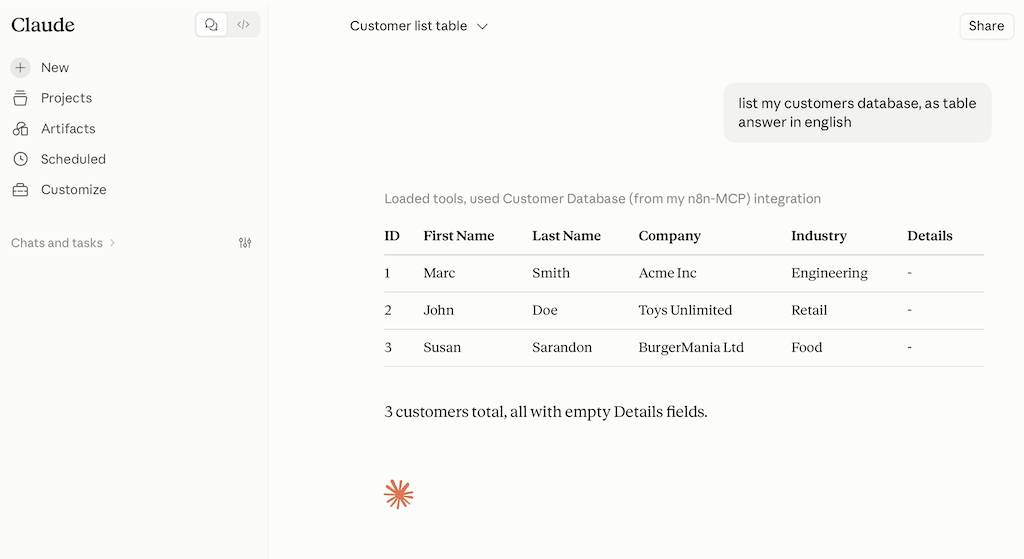
Here’s the result of our tutorial:
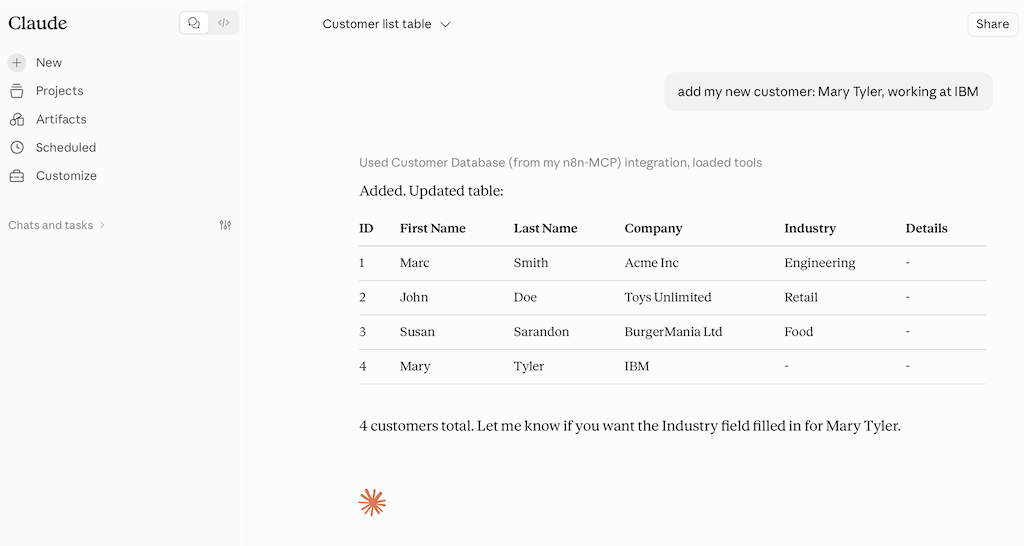
Practical Example: Creating an MCP Server in n8n
As an example, we’ll use a simple workflow where you can use Claude to retrieve our customers from a database and also add new customers.
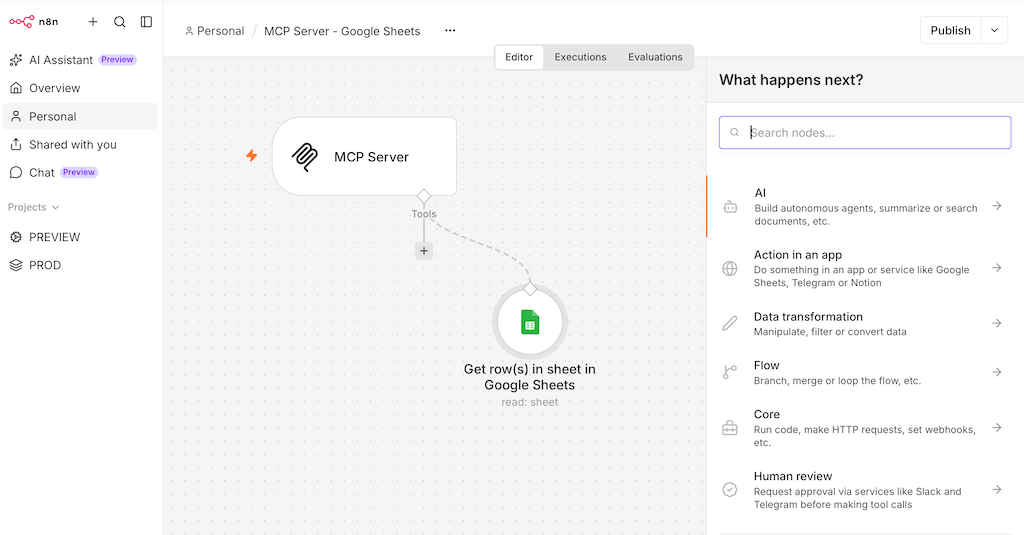
Step 1: Create an n8n workflow and an MCP server trigger
Add a new trigger: Select the “MCP Server Trigger” for this purpose
Step 2: Set up the MCP server
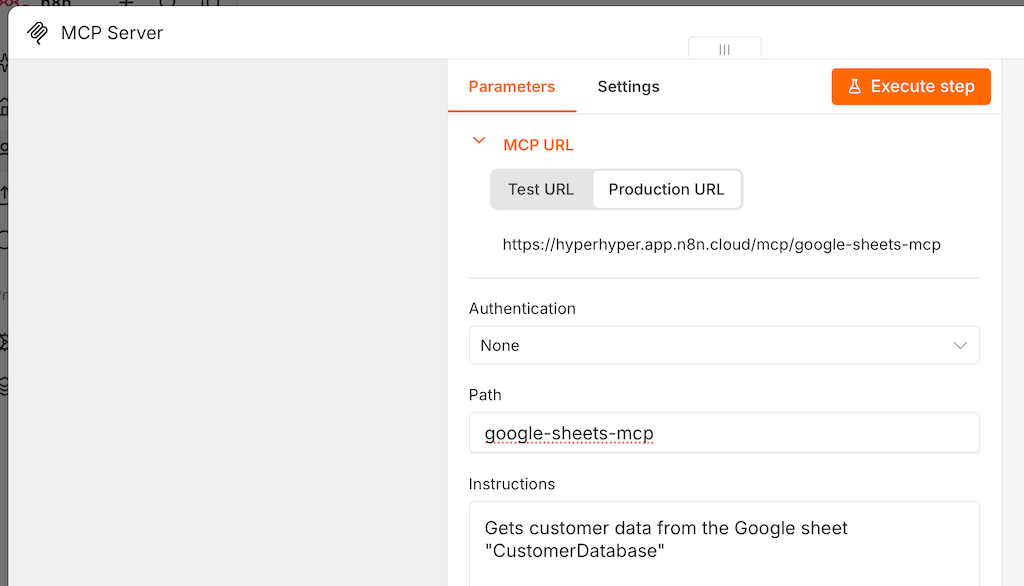
In the MCP Server node, under “Path,” specify the URL where the MCP server can be reached.
Important: Also set up authentication (Bearer or Header auth) so that the workflow can only be triggered when you are authenticated.
Step 3: Create a simple customer database in Google Sheets
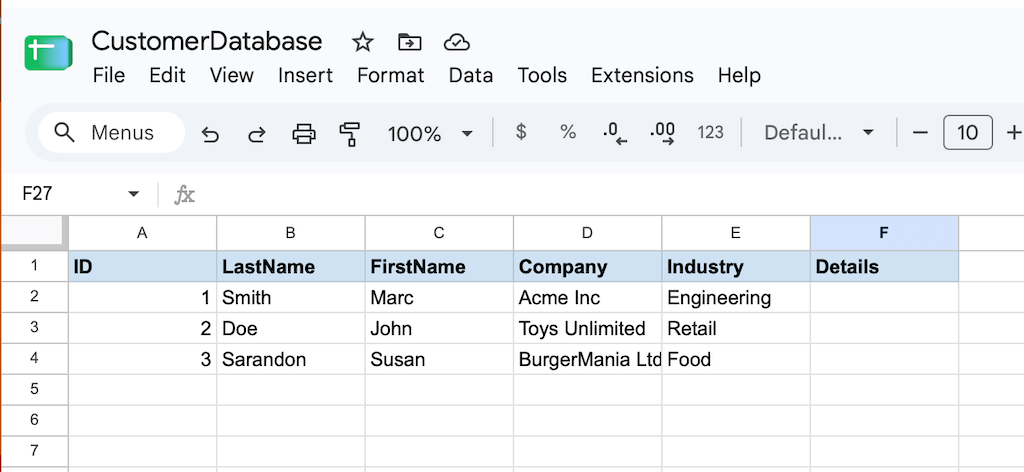
Create a simple list of customers or contacts in Google Sheets.
Step 5: Connect tools to the MCP server
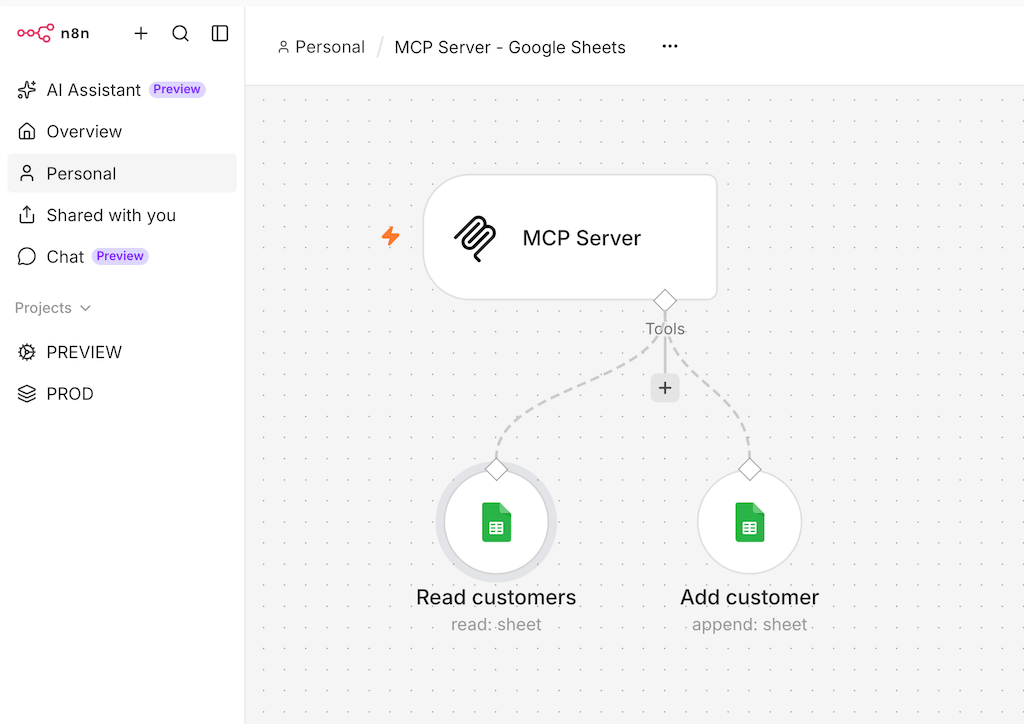
You can now attach tools to the MCP trigger. When the MCP server receives a request via chat (e.g., “List my customers”), it can automatically find and run the tools. By providing a clear description for each tool, you can ensure that the correct tool is selected automatically.
We’ll create two Google Sheets nodes as tools. One for reading and one for adding a new customer.
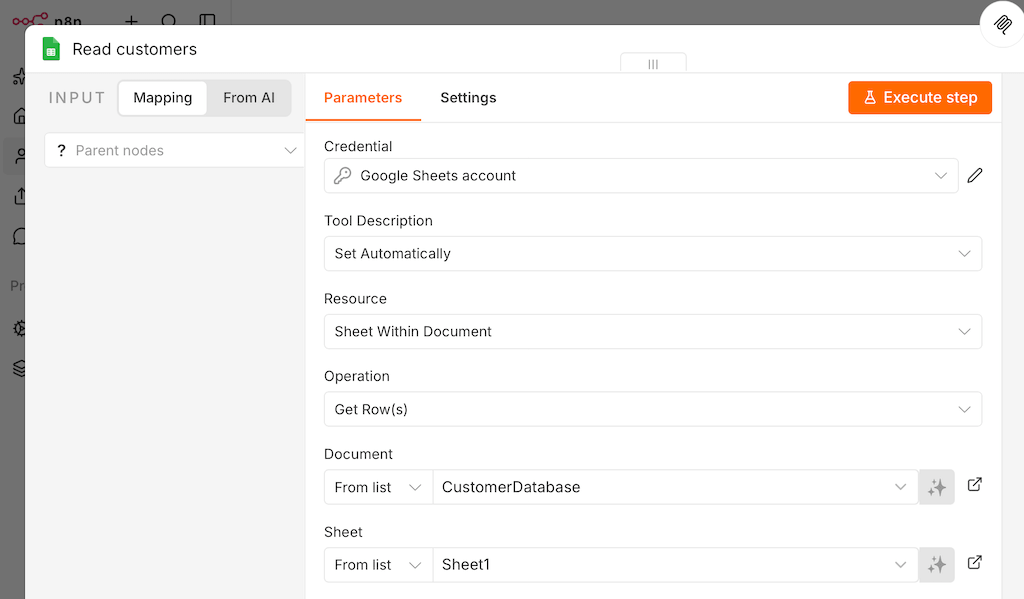
Node: Read customers
Set the following settings:
- Operation: Get Rows
- Document: CustomerDatabase (the name of your customer sheet)
- Sheet: Sheet1 (this is the tab in the Google Sheet)
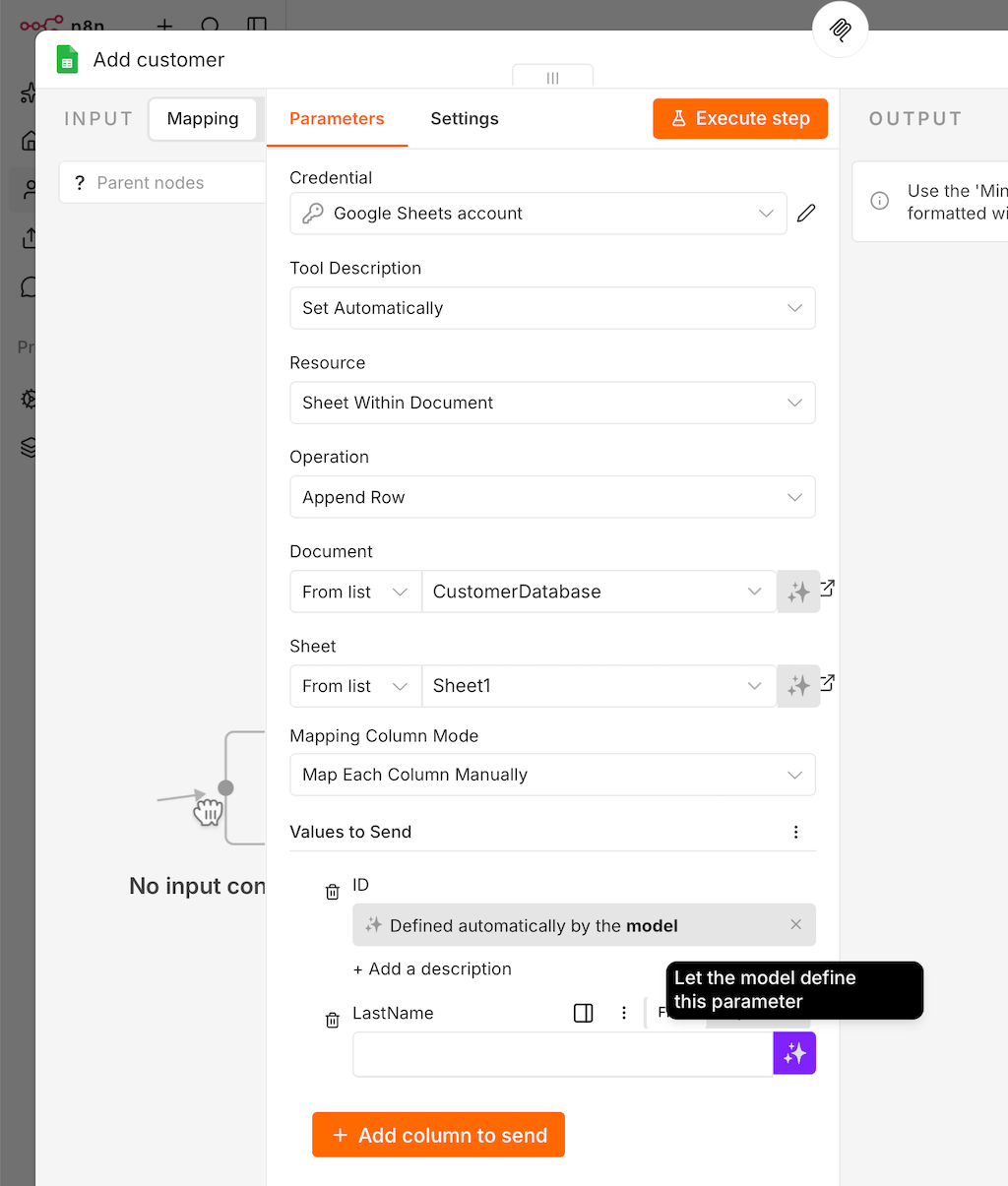
Node: Add customer
Set the following settings:
- Operation: Append Row
- Document and Sheet: as previously specified
- Mapping Column Mode: Manually
- Add all the columns from your customer sheet one by one and select the option “Let the model define this parameter.” This allows your AI assistant—such as Claude—to determine on its own how the value should be populated. Claude will then use the parameter names (e.g., “FirstName” and “LastName”) to determine on its own how, for example, the name “Mary Smith” should be formatted correctly.
Step 6: Publish the workflow
Click “Publish” in the top-right corner of n8n to make your server visible.
Step 7: Set up and test the MCP server in Claude or ChatGPT
Now we’ll connect your AI assistant to the MCP server created in n8n. To do this, copy the production URL from the MCP server node.
Below you’ll find instructions for Claude and ChatGPT. Afterward, test your MCP server by asking about your existing customers or adding new ones.
How to Connect Your n8n MCP Server to Claude
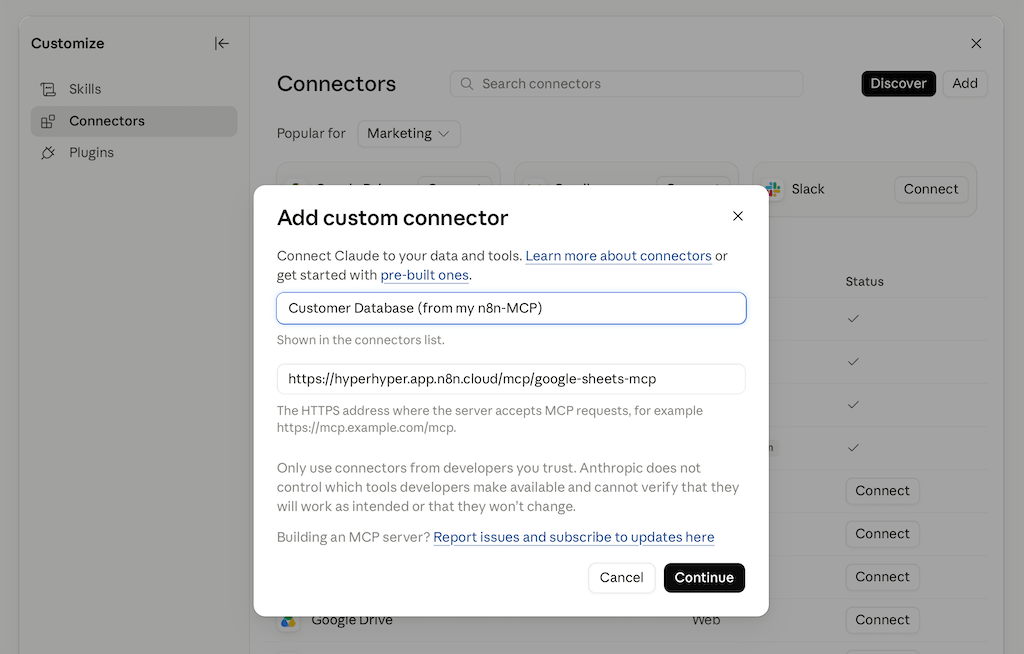
Once the workflow is active, enter the production URL into Claude as a separate connector:
- Step 1: Set up the MCP server as a connector
- Click “Customize” in the Claude menu on the left
- Navigate to “Connectors,” switch to MCP, click “Add” in the top right, and select “Add custom connector.”
- Enter the production URL of the MCP Server Trigger and give the connector a name.
- Step 2: Set upauthentication.
- For beginners: As a test, you can first disable authentication in n8n and republish the n8n workflow.
- For advanced users: If the previous step works, you can re-enable authentication in n8n. To do this, you’ll need to republish the workflow and reconnect the Claude connector.
- Step 3: Enable the connector
- and turn it on in the chat via the plus icon under “Connectors”; after that, the workflow will be available as a tool.
How to connect your n8n MCP server to ChatGPT
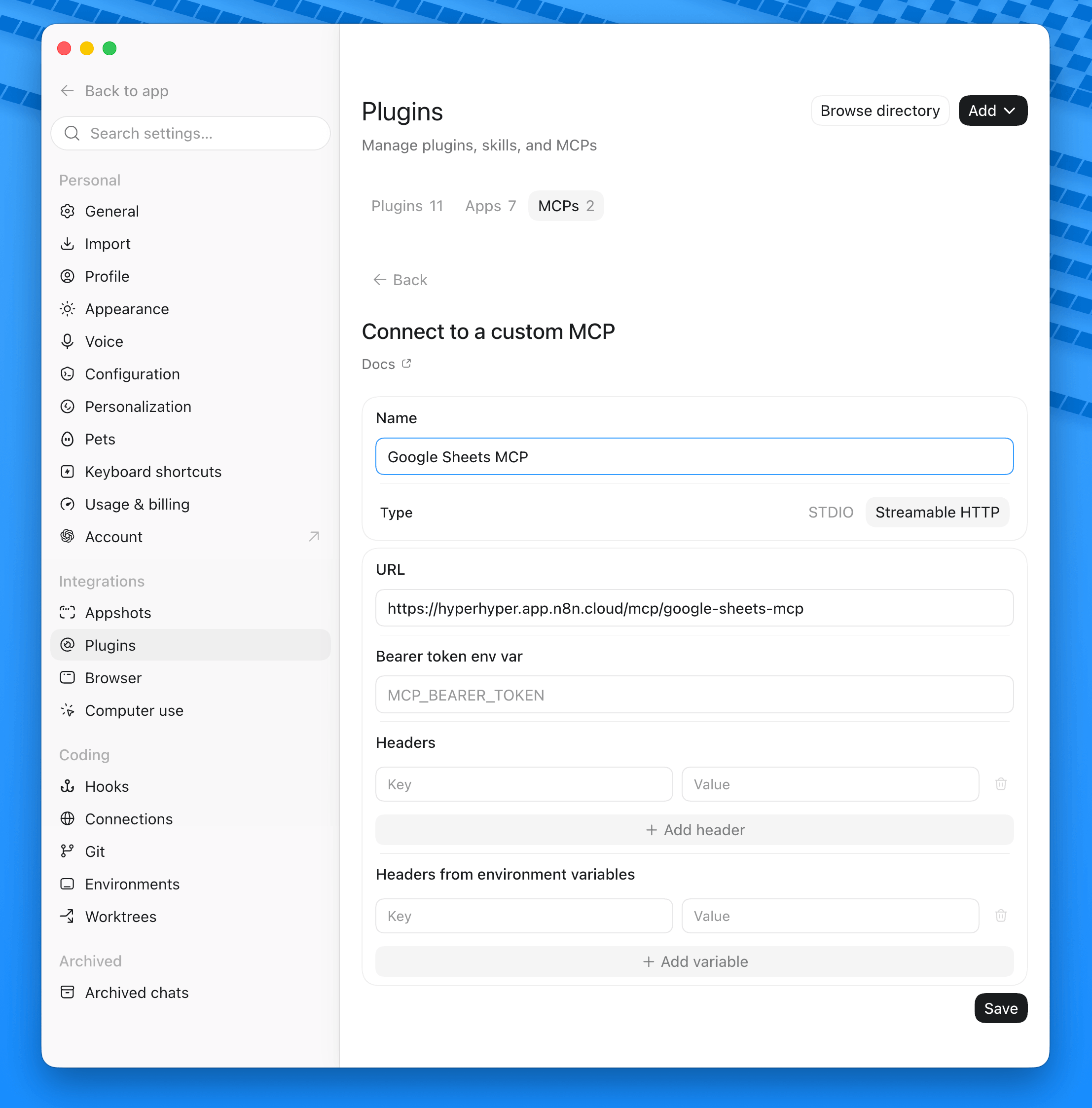
ChatGPT integrates external MCP servers via Developer Mode, available for Plus, Pro, and Team accounts:
- Step 1: In ChatGPT, go to “Settings → Apps & Connectors” (or “Connectors”) and enable Developer Mode (important!)
- Step 2: Create a new connector
- Name: Choose any name
- URL: Enter the production URL of the n8n workflow.
- Type: Streamable HTTP
- Step 3: Configure authentication.
- If your server supports OAuth, ChatGPT will guide you through the login flow.
- For Bearer or Header authentication from the n8n node, enter the token in the designated field in the connector setup.
- Step 4: Test the connection
- In the chat, specifically ask, “List my customers from my Google Sheets customer database (MCP server).” If that doesn’t work, there’s still an issue.
- Try simpler questions, such as “List my customers.” If that doesn’t work, you can improve the “Description” in the MCP node and in the tool nodes within the n8n workflow. This will make it easier for your AI assistant to find the tools.
In both cases, keep in mind: An MCP server that you host yourself via n8n constitutes third-party access to your data and systems. Enable it only for accounts that really need it, and limit the attached tool nodes to what the respective assistant is actually supposed to do.
The Key Benefits
- Existing workflows become tools: No new code, no new API—the existing workflow remains the same; only the trigger changes.
- A standard instead of individual integrations: MCP replaces individual interfaces with a protocol that many AI tools already support.
- Full control over the data: The workflow runs in your own n8n instance; no data leaves your infrastructure without your input.
- Faster rollout of new tools: Deploying a new tool means simply adding another node to the existing trigger.
- Built-in access protection: Authentication is mandatory to ensure that only authorized clients can access the server.
Alternatives: Hosting MCP servers instead of building your own
Not every use case requires a dedicated n8n workflow as an MCP server. If you don’t have a workflow set up but are looking for a ready-made MCP server for an existing service, there are two common alternatives:
- Hosted MCP servers from a provider: Services like Notion, Atlassian, or Cloudflare offer their own, pre-hosted MCP servers. You simply enter the URL in the MCP client—no need for your own hosting or operation.
- Running an MCP server on Azure: Using Azure Functions or Azure Container Apps, you can run an MCP server as a separate, managed service—which makes sense if compliance requirements mandate your own hosting in a specific cloud environment.
The n8n approach remains the most pragmatic option, however, if the logic behind the tool already exists as a workflow or is intended to be created—setup takes just a few minutes and runs alongside your existing n8n instance.
MCP Server in n8n: Frequently Asked Questions (FAQ)
How much does an MCP server in n8n cost?
The MCP Server Trigger is part of n8n and doesn’t cost anything extra. The only potential cost is for n8n itself, if you use n8n Cloud instead of self-hosting.
Do I need my own domain or server?
No. The MCP server runs under the production URL of your existing n8n instance; an additional server is not required.
How secure is an MCP server built with n8n?
It’s only as secure as the authentication method you choose. Bearer or header authentication are required; an open connection without access protection should never be used in production, especially if attached tool nodes have write access to systems.
Which nodes can I attach to the MCP Server Trigger?
Basically any regular n8n node—database queries, HTTP requests, integrations like Google Sheets, or custom logic. Each attached node appears as a separate tool to MCP clients.
Learn more
- n8n Documentation: MCP Server Trigger —official reference for configuration, authentication, and transport protocols.
- Video: n8n Just Released Native MCP Trigger and AI Agent Tool (Official Walkthrough) —shows the MCP Server Trigger in action.
Conclusion
An MCP server in n8n is created from an existing workflow and the MCP Server Trigger—without additional hosting or a custom API. For services for which a hosted MCP server already exists, setting up your own is rarely worth the effort. However, as soon as the logic is already running—or is intended to run—as an n8n workflow, your own MCP server can be up and running in just a few minutes.